Tasks
A task in Aevy is a dated piece of work on an asset: a calibration to run, an inspection to schedule, a certificate to renew. The Tasks page lists them across your whole portfolio with due dates and statuses. You work from one list of what’s due and what’s overdue.
Until July 2026, tasks went by the name reminders. The page, the records, and the work are the same. Only the word changed, and old /dashboard/tasks/reminders links still resolve.
Anatomy
Section titled “Anatomy”The Tasks page replaces tracking down dates in separate documents.
A task isn’t an obligation. An obligation defines what a contract, agreement, or regulation requires and how often. A task is one dated piece of work. Obligations and tasks sets the two side by side.
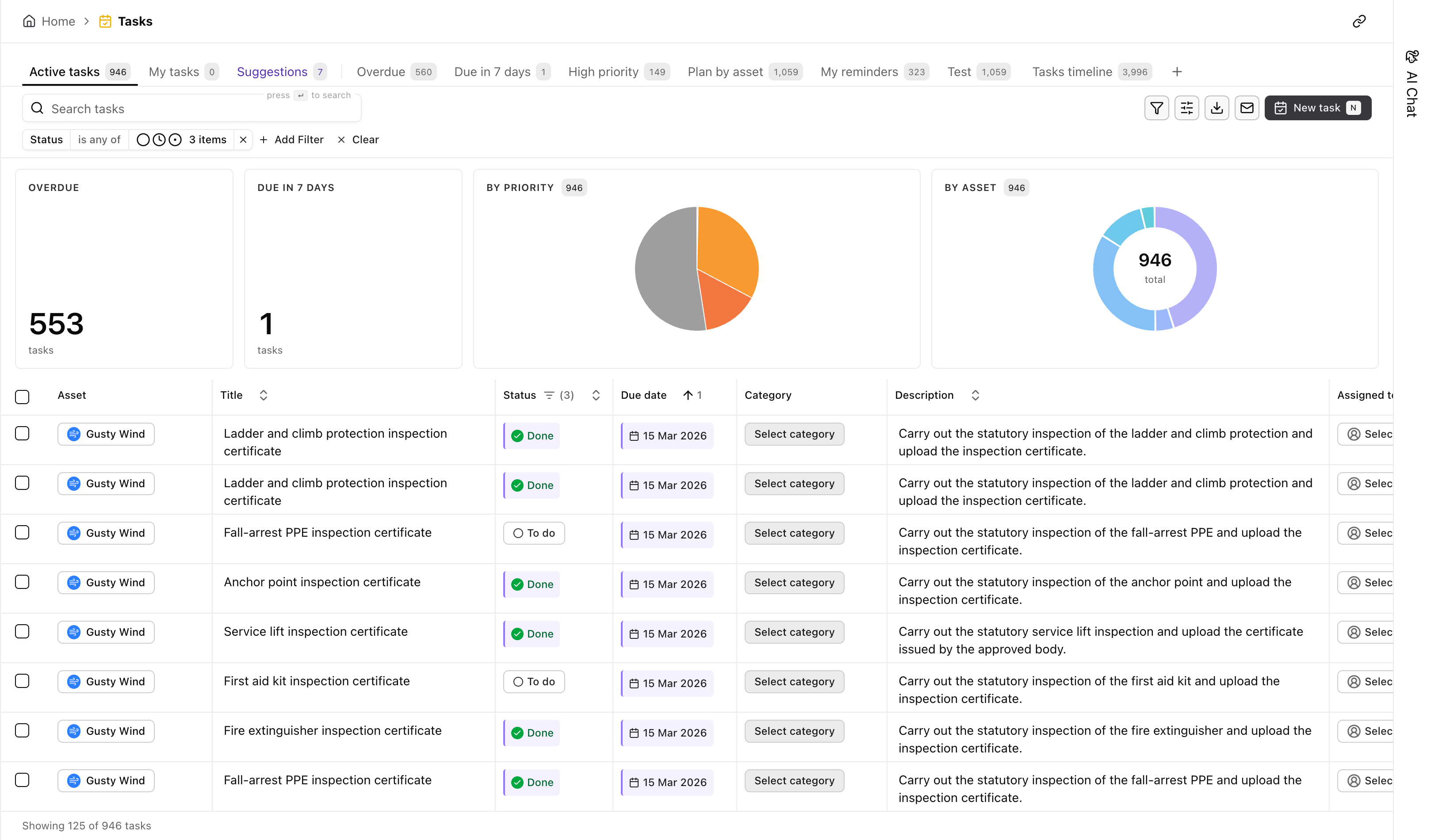
A strip of cards above the rows summarizes the list: Overdue and Due in 7 days as counts, then the tasks By priority and By asset. The cards count what the page’s filters show. Click a count or a slice and the whole page takes that filter.
Find a task
Section titled “Find a task”The tasks list works the same way as every other table in Aevy, so the table filtering guide covers the mechanics. The tools that matter here:
- Saved views. The tabs along the top are prebuilt views: Active tasks and My tasks, followed by any views your team has saved. Each keeps its own filters and columns. The count next to a tab shows how many tasks match.
- Search. Search tasks matches on the title and description.
- Filter. Filter and Add Filter build a filter on any column, for example, a single asset or a due date range.
- Group by. Split the list into sections by status, priority, or asset, each heading counting every task that matches your filters. See the grouping guide.
Each row names the asset, what needs doing, its category, its due date, and its status from To do onward. Sort by the due date column to bring the next deadlines to the top.
Create a recurring task
Section titled “Create a recurring task”Set up cyclical work once, as a recurrence, and Aevy creates the dated tasks from it. Recurrence is part of creating the task: on the New task form, Add recurrence is under the due date. Pick the asset first, because the series belongs to it. If you ask for recurrence before choosing an asset, the form refuses with a note saying so.

Set the pattern
Section titled “Set the pattern”The dialog builds the pattern in two rows. The first sets the step: Daily, Weekly, or Monthly, with an Every count for wider gaps, such as every 3 months. It also sets the weekday or the day of the month the task falls on. The second row sets the span: Starts from is the first due date. Ends stops the series either After a number of occurrences or on a date you pick.
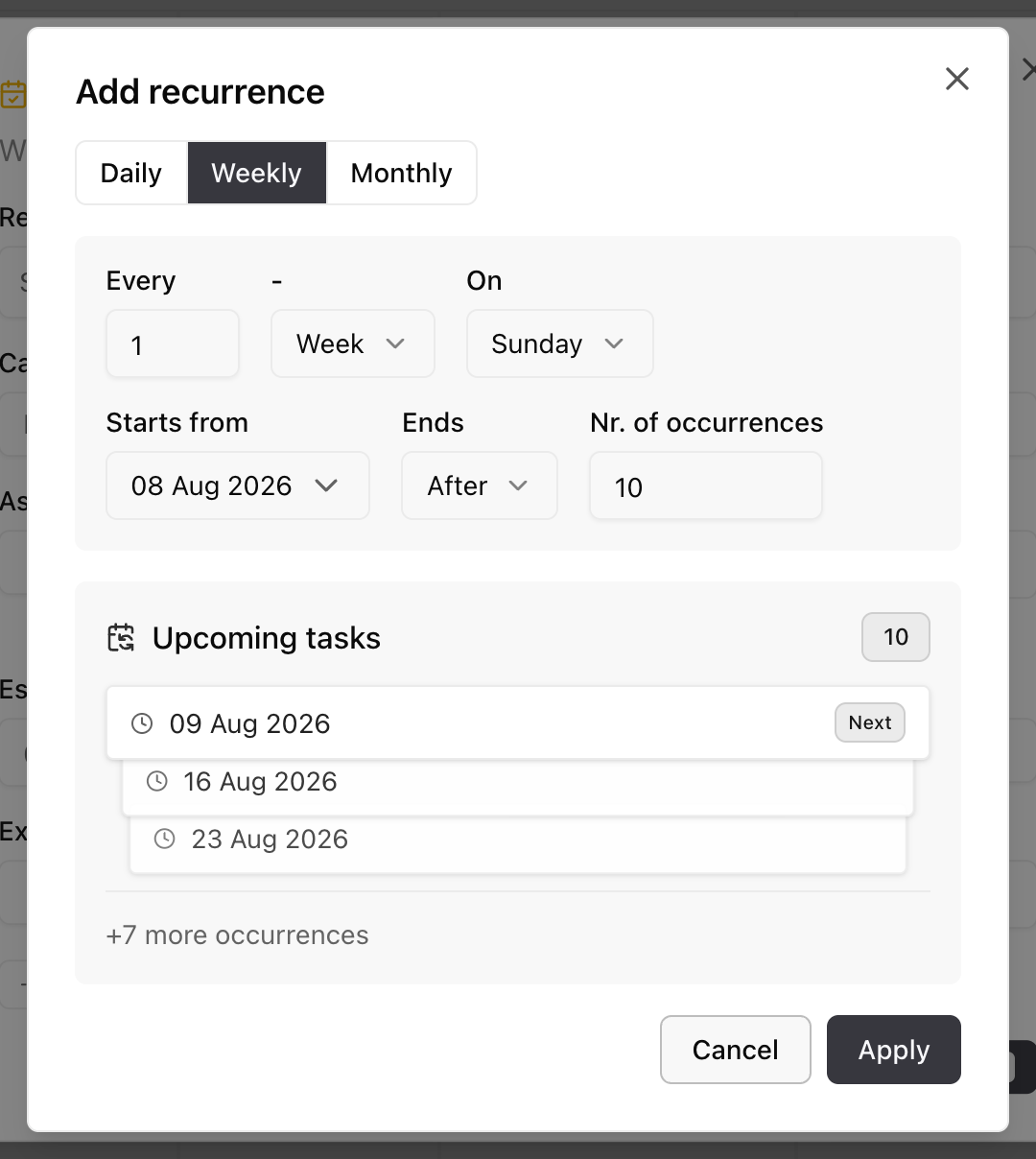
Upcoming tasks lists the next three dates the pattern produces and counts how many more follow. Check the schedule against the calendar there, before Aevy writes anything. A pattern that would produce a large number of tasks says how many it creates.

Read the recurrence back
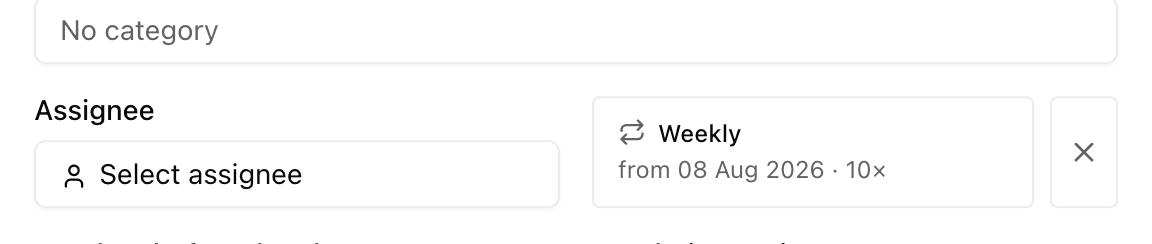
Section titled “Read the recurrence back”Once applied, the recurrence replaces the due date field with a summary: the pattern on one line, the start and the length under it. Clicking the summary reopens the dialog. The remove control drops the recurrence and returns a plain single task.
Change a recurring series
Section titled “Change a recurring series”Each occurrence is a task in its own right, so you can reschedule, reassign, or complete one without touching the rest. Opening one that belongs to a series says so, and Update series edits the pattern for all of them. That dialog asks what your change applies to: All tasks in the series, or Future tasks only. The latter leaves the ones already done or in progress as they are. Delete series removes the whole run at once. To keep the early occurrences and stop the rest, edit the recurrence and bring its end date forward.
Act on a task
Section titled “Act on a task”- Create. New task adds one, against an asset and a due date.
- Bulk update. Select rows with the checkbox on the left, then set a status, an assignee, a due date, or any other field on one of them. The whole selection takes it. See the bulk updates guide.
- Accept a proposed task. Tasks Aevy proposes wait under the Suggestions tab, with their count on the tab. Each proposed row is tinted and has Accept and a dismiss button of its own. Accept all at the top of that tab takes them all.
- Link to an obligation. An open task has Link to obligation, which files it as work that satisfies one of the asset’s obligations. Linked tasks name the obligation and link straight to it.
- Send. Send emails a task out, so a deadline reaches whoever needs to act on it.
- Export. Export takes the current view out as a file.
Limits
Section titled “Limits”You set recurrence when you create the task. You can’t turn an existing single task into a series afterwards. Track a duty that a contract, another agreement, or a regulation requires of you as an obligation instead. It has its own cadence and creates the tasks for you.
What’s next
Section titled “What’s next”- Suggestions: tasks Aevy proposes from your documents arrive here first, and accepting one adds the task.
- Obligations: a duty with a cadence, which creates the dated work on each cycle.
- Findings: a task can appear alongside one as the repair that clears it.