Logging in
Aevy is at aevy.app, and you sign in with your existing company credentials. Type your organization identifier, and Aevy takes you to your company’s identity provider to authenticate, then returns you to the platform with an active session. There is no separate Aevy password to create.
Before you begin
Section titled “Before you begin”Your first login needs both of these, and neither of them comes from inside Aevy:
- Your organization identifier. A short name for your company in Aevy, given to you during onboarding. For example, the demo organization’s is
aevy. It’s what determines which identity provider Aevy sends you to. - Access in your own identity provider. Your IT administrator assigns you to the Aevy app there, which is where the decision about who may log in actually is. The SSO setup guide is the one they follow.
Aevy doesn’t send an invitation email: authentication stays with your provider, including whatever multi-factor rules it enforces.
Sign in
Section titled “Sign in”Open aevy.app. The Log in with SSO form is what loads.
Type your organization identifier in Organization identifier.
Press Log in. Aevy takes you to your identity provider.
-
Authenticate there, the way you do for your other company applications.
Your provider returns you to Aevy, signed in, on Home.
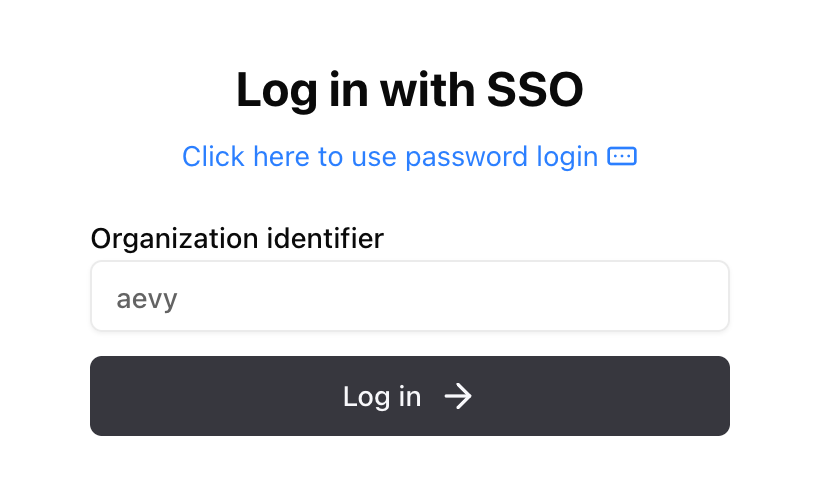
Your browser remembers the identifier after the first successful login, so later visits open with the field already filled in. Start at aevy.app rather than from a tile in your provider’s app portal: Aevy always opens the handshake itself, and a provider-initiated login has nowhere to go.
Verify the login
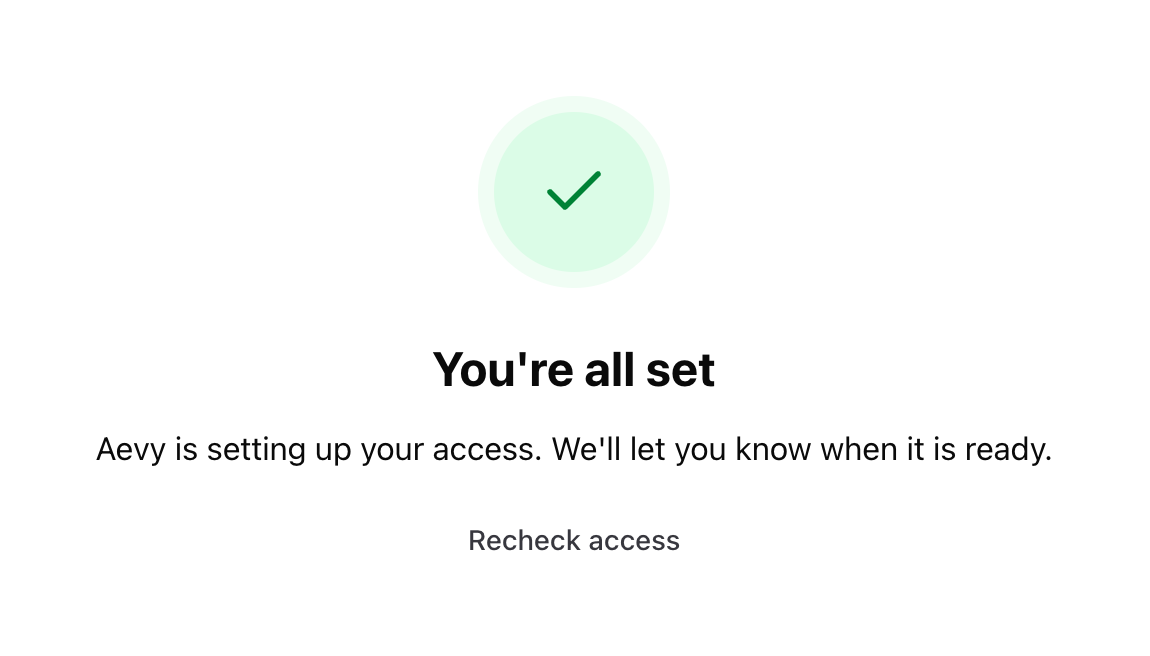
Section titled “Verify the login”The first time you sign in, Aevy shows You’re all set while it sets up your access. It needs nothing from you, Aevy lets you know when your access is ready, and Home opens once it is.
Sign out
Section titled “Sign out”Your account menu is at the bottom of the sidebar, and signing out from there ends your Aevy session. Your company’s identity provider keeps its own session, so signing back in may go straight through without asking for credentials again. End that session where you sign out of your other company applications. Aevy sessions also expire on their own after a period of inactivity.
Troubleshooting
Section titled “Troubleshooting”Three of these look alike and have different fixes, so name the one you see exactly when you report it:
| The You’re all set screen stays up | Your account is waiting on access, and only Aevy can grant it. Tell your Aevy contact. |
| The platform opens without the assets you expected | The same wait on access. Tell your Aevy contact. |
| A banner headed Access Incomplete | Your account reached the platform but has no working mode yet. Its text reads: “Your account is not fully configured yet. Contact support to complete your setup.” |
| You land back on the login screen seconds after signing in | The third variant of the same family. Report it by that description. |
| Your own provider refuses you, on its screen rather than Aevy’s | The block is a policy in your company’s tenant. Your IT administrator can see which one in their sign-in log, and the SSO setup guide names the usual suspects. |
What’s next
Section titled “What’s next”- Getting around: the sidebar.
- Home: the page Aevy opens on.