Documents
The Documents page in Aevy contains every document connected to your assets: contracts, inspection reports, drawings, operational reports. Documents sync from your SharePoint, so there’s no upload step. Aevy reads each one, classifies it, extracts its facts, and tracks its processing status until it’s ready to trust.
Anatomy
Section titled “Anatomy”The Documents page has two parts: a folder tree on the left, synced from your source, and a table on the right. The sync brings the folders too, not only the files. The table lists documents once you narrow to what you want.
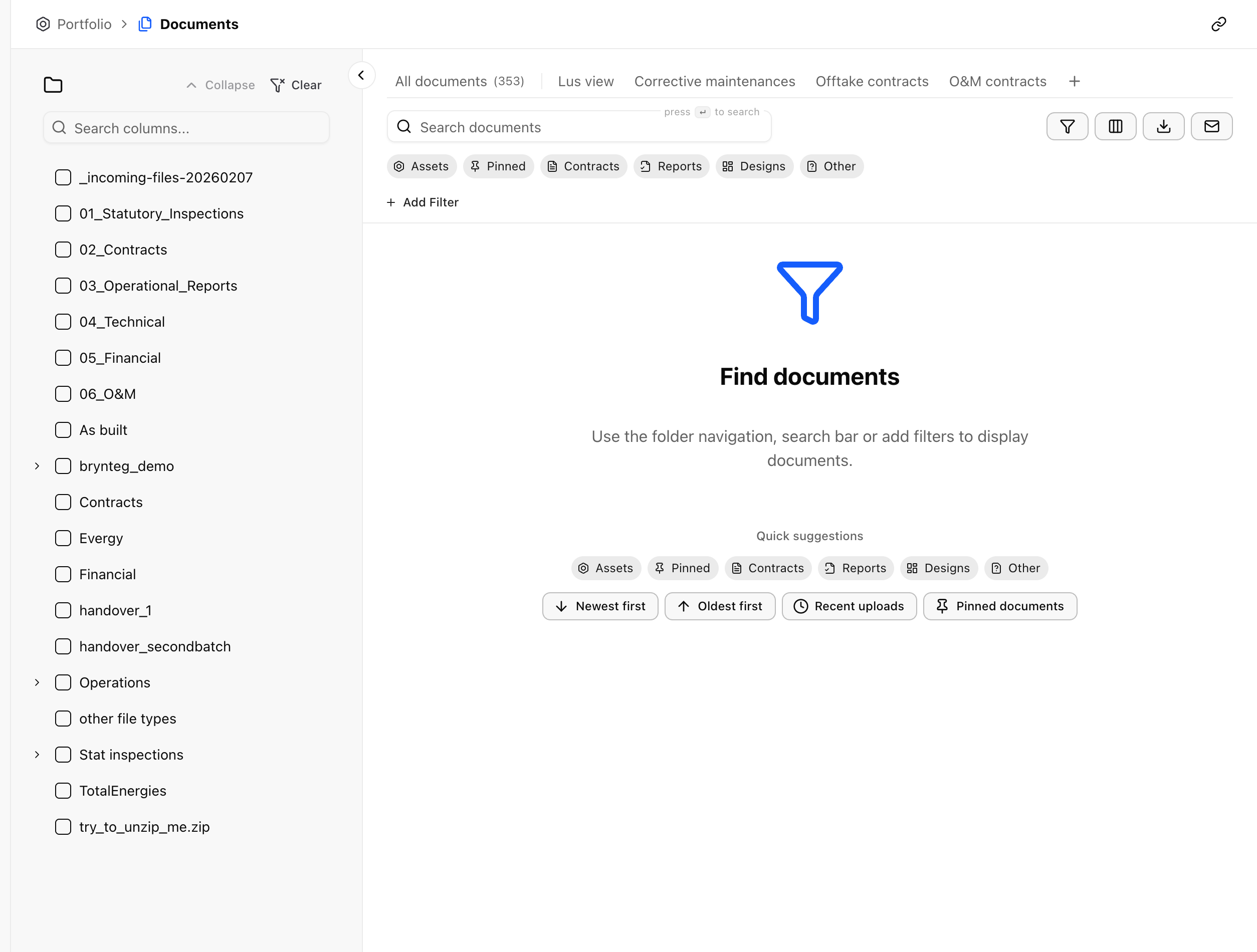
Saved views appear along the top: All documents, plus any views your team has saved. Each view remembers its own folders, filters, and columns.
Find a document
Section titled “Find a document”Four tools narrow the document list, and they combine:
- Folders. The tree on the left is your source structure, synced across: you browse the same folders you have at the source. Tick a folder to show only its documents.
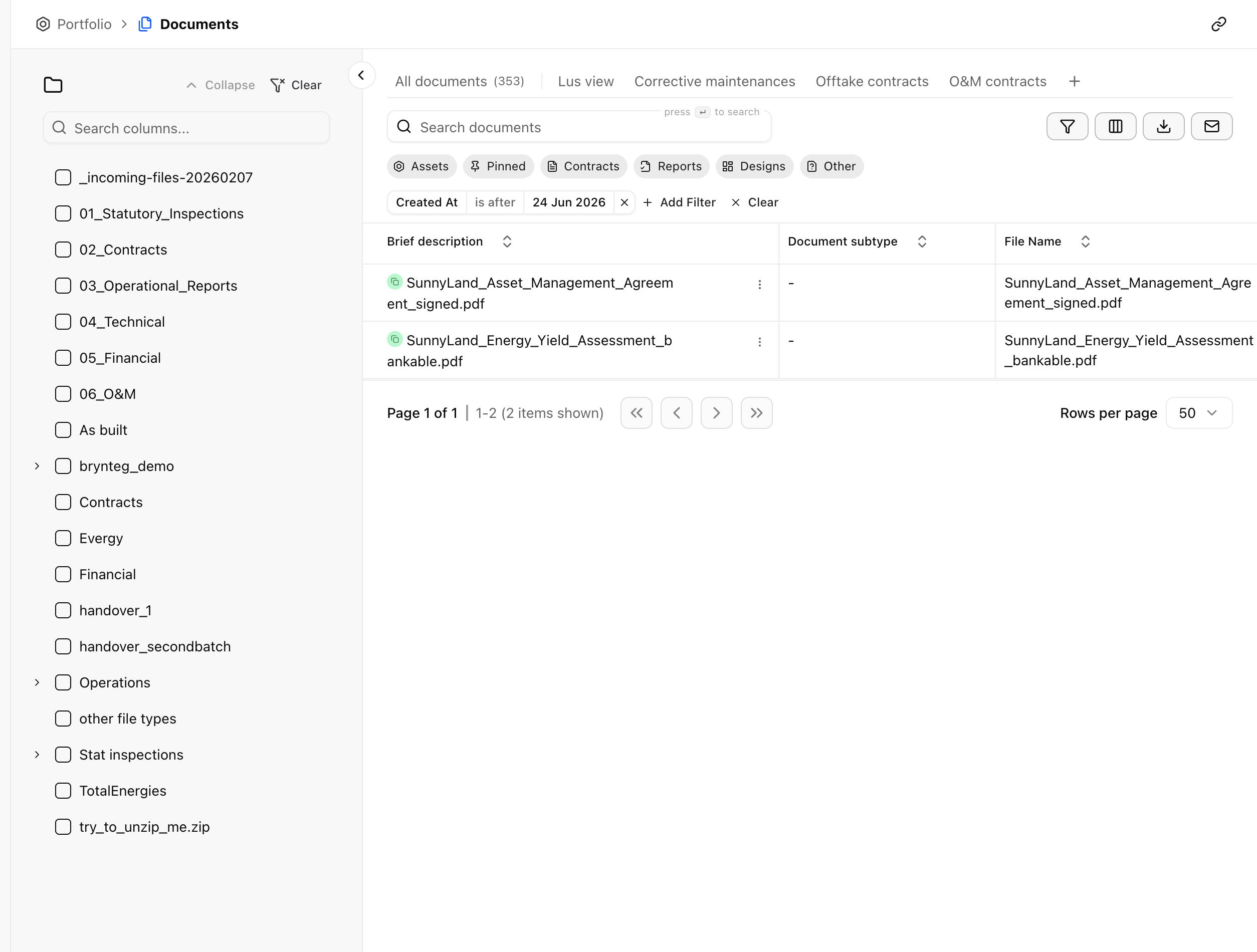
- Search. Search documents matches on document names and briefs.
- Quick filters. The chips Assets, Pinned, Contracts, Reports, Designs, and Other jump to a common view in one click.
- Add Filter. For anything more specific, build a filter on any column. See the table filtering guide for how filters work.
Rows load as you scroll rather than a page at a time. Reach the bottom of the list, and the next batch appears underneath what you’re already reading. To see the same list split by a column instead, group it. Group by appears above the table and gives you a section per document type, status, or asset. Each heading counts every document that matches your filters. See the grouping guide.
Read a document
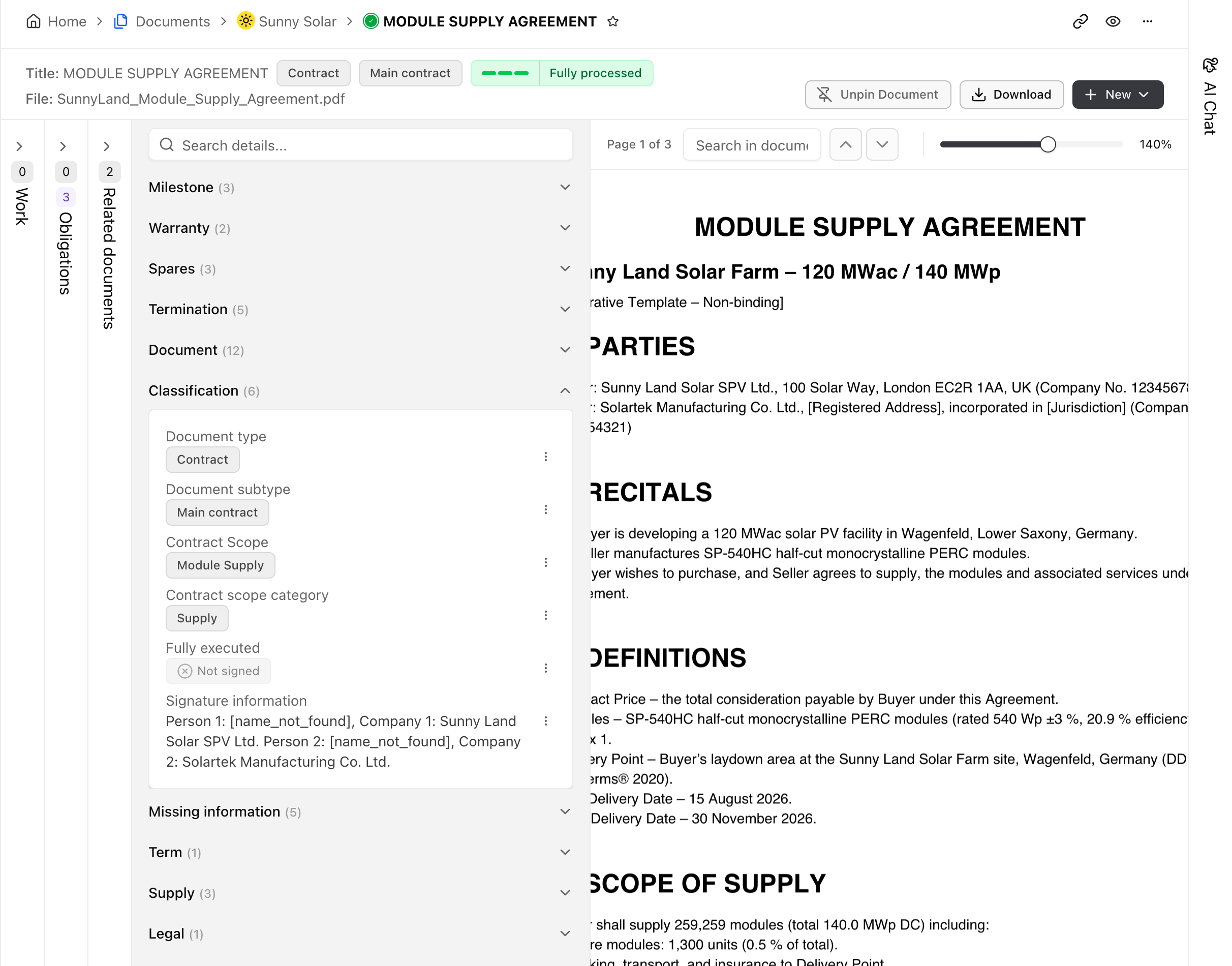
Section titled “Read a document”Open a row to read the document in full. The original opens across the main pane, and Details at its side opens the details panel. The panel covers the document type, the parties, the page count, and its signature state, whether signed, partially signed, or not signed. Tabs group the related work, any obligations the document touches, and other versions of the same document.
Check a document’s status
Section titled “Check a document’s status”Each document has a status while Aevy processes it, so you know whether it’s ready to trust. Most settle on Success. Along the way you may see OCR in progress or Extraction pending, while Aevy is still reading it, then Queued for detection or Detecting records, while Aevy checks it for records to propose. Occasionally you’ll see a state that needs attention, such as Encrypted or Corrupt. A red chip is a problem worth following up on.
Above the table, Processing status counts the PDFs in view by how far Aevy has got with them. Its segments are Done, Needs attention, Couldn’t be read, Detection failed, Excluded, Queued, and Processing. Other file types are never processed, and the bar leaves them out. Click a segment to filter the table to those documents, and click it again to clear the filter. The badge above the bar names the worse of the sync from your source and the processing, such as No sync in 25m or Done processing. Click it to see which assets are not fully synced, which have had no new documents in over 20 days, and how many documents arrived in the last 24 hours. Refresh beside it reloads the list, and also starts a sync if you can manage the sync of the assets in view. How your data gets in reads the sync states. Automatic detection opens the same progress for each check, next to a link to the suggestions waiting for your review.
When a newer version of the same document syncs, Aevy marks the older one Superseded and marks any copy Duplicate. Each has a link to the active version. You can still open the old one, but the status shows it’s not the one to work from.
Pin a document
Section titled “Pin a document”Pin the documents you return to often. A pinned document stays one click away under the Pinned filter and on its asset. To pin from the list, right-click a row and choose Pin document. The same menu has Download file and Open in source. See the favorites and pinning guide for how pinning works.
Limits
Section titled “Limits”Documents come from a sync with your source: there is no upload step and nothing to file. The folders are the source’s folders, so you don’t create or manage them here.
A grey status chip is a document Aevy won’t read, and nothing can change that, such as Unsupported format or Document too long.
What’s next
Section titled “What’s next”- How your data gets in: the sync that puts documents and folders here.
- Filtering tables: the operators behind Add Filter, and how to save a narrowed list as a view.
- Obligations: what Aevy tracks out of the contracts it reads.