Lineage
Every fact Aevy extracts from a document keeps a link to the exact line it came from. Click a value, for example a fee, a date, or a party. The document opens to the right page with the source text highlighted, so you never take an extracted number on trust. This is lineage.
Anatomy
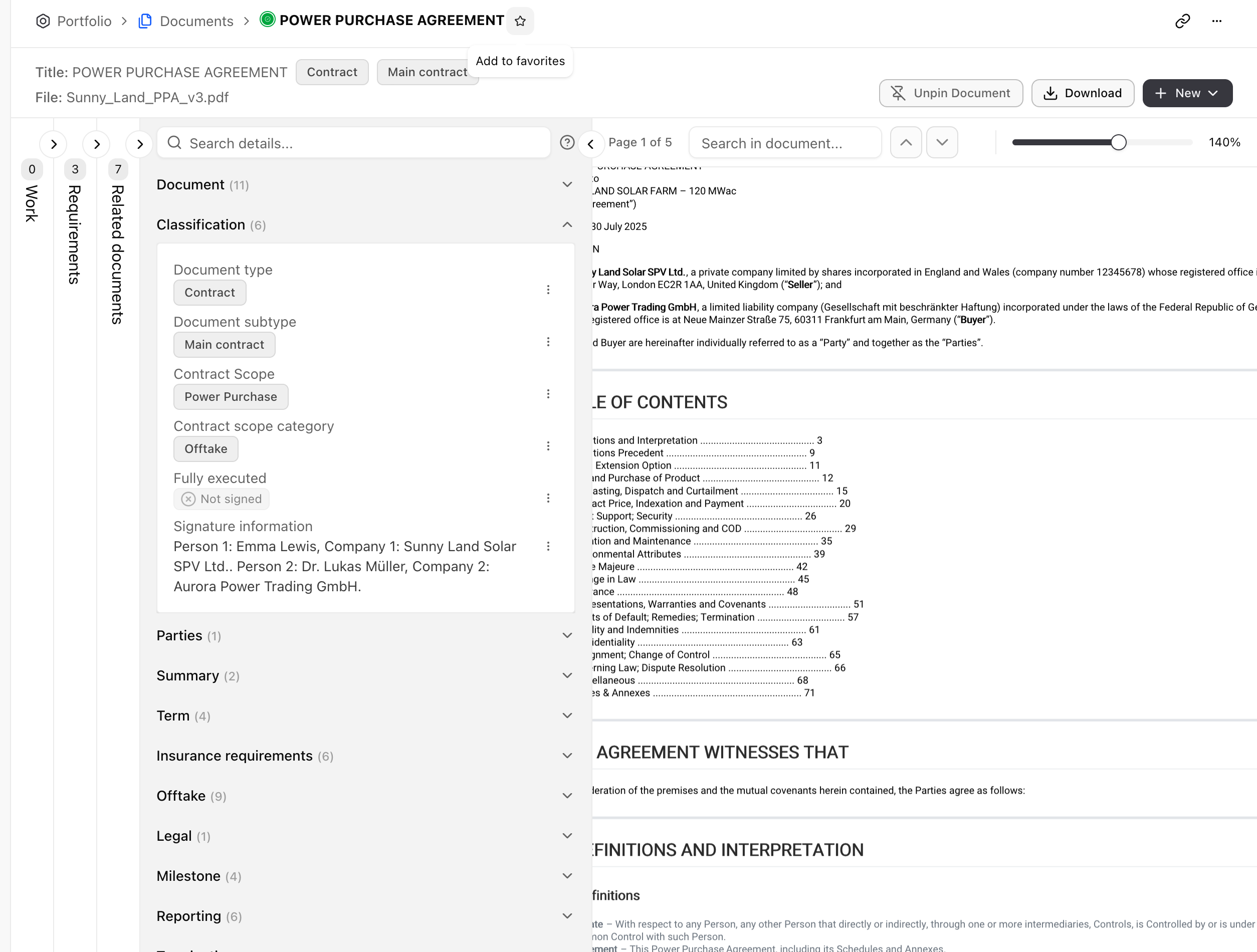
Section titled “Anatomy”When a document syncs, Aevy reads it and pulls out the facts it holds: the parties, the dates, the fee, the obligations. You see them on the document page. Open one and you get two halves: the document itself on the right, and a set of panels on the left. The panels are Work, Obligations, Related documents, and Details, and they’re independent, so you can have more than one open at once. The Details panel is where the extracted facts are, grouped by area: classification, parties, term, offtake, fee, and so on. Use Search details to jump to a fact by name.
Reveal a fact’s source
Section titled “Reveal a fact’s source”Click an extracted value and the document scrolls to its page and highlights the source. Take the Sunny Solar power purchase agreement: the Base fee reads €65.00/MWh for Contract Years 1-10. Click it, and the document jumps to page 3, to the Contract Price section, and highlights Contract Price: € 65.00 /MWh.
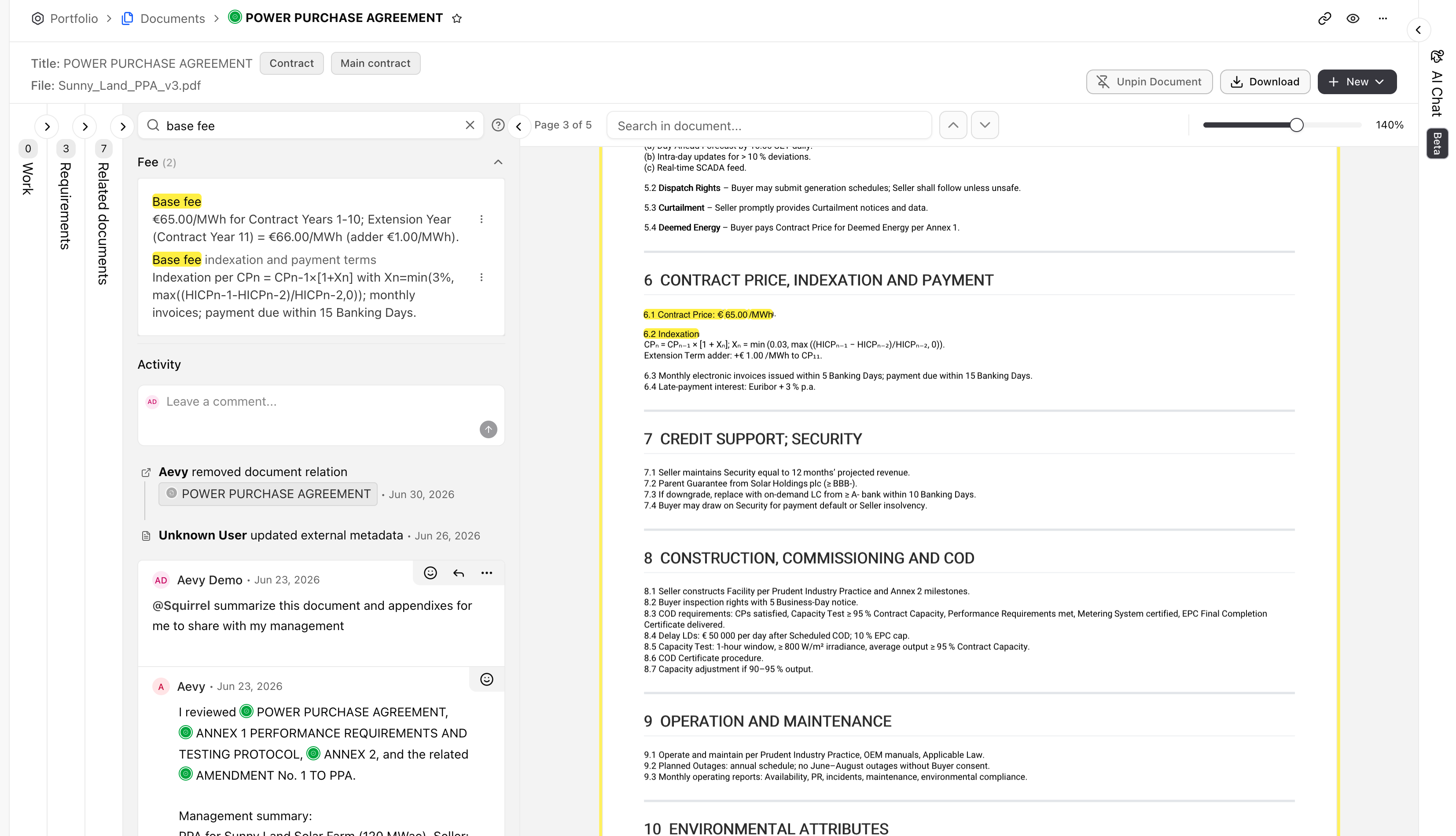
Facts are clickable wherever they appear, not only on their own document. In a table, or in an answer from Squirrel, the same click opens the document to the same highlighted line. When you are already on the document, it reveals in place. From elsewhere, it opens the document in a preview and takes you straight to the source.
Use the fact menu
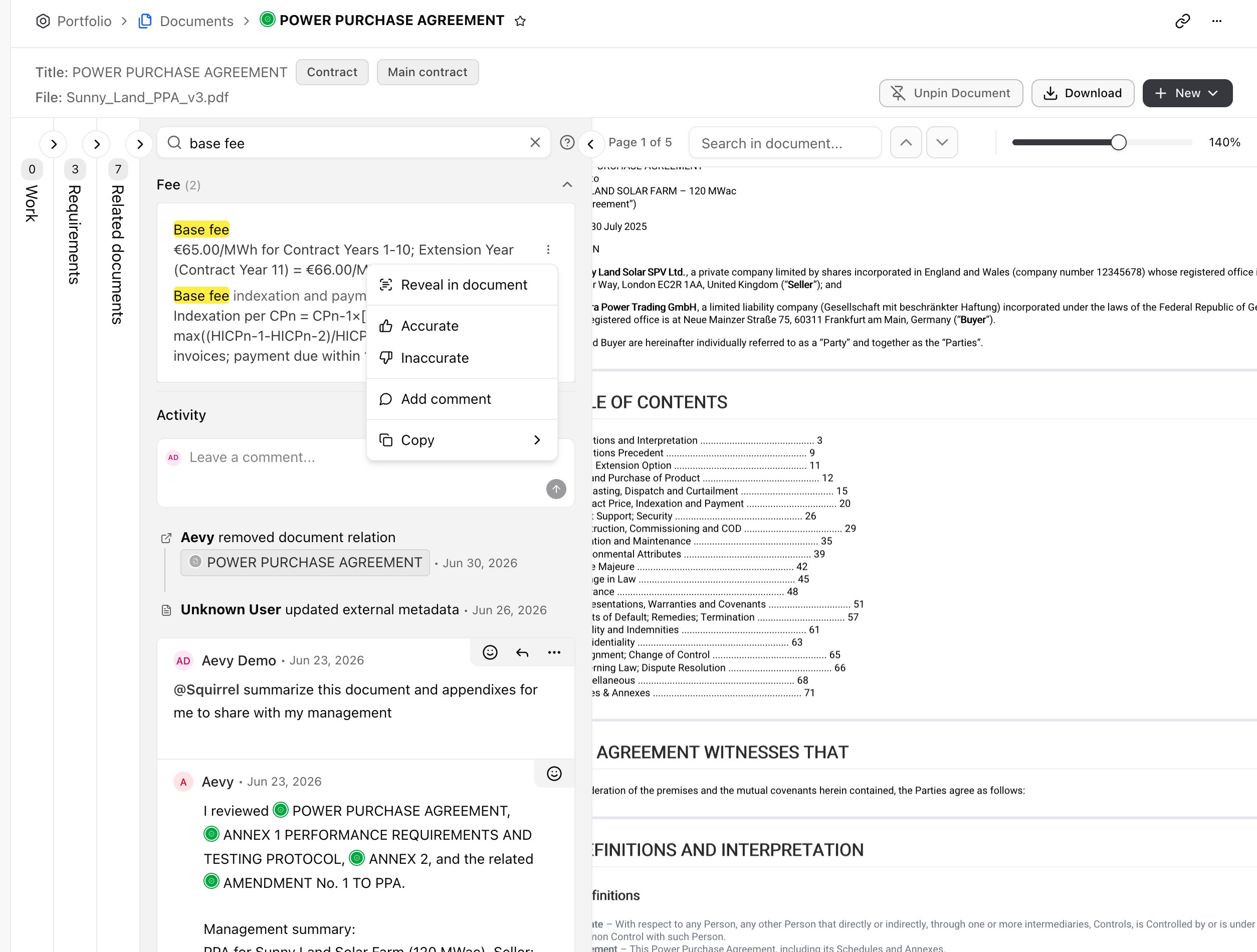
Section titled “Use the fact menu”Each fact has a small menu. From it you can:
- Reveal in document. The same jump-and-highlight as clicking the value.
- Copy. Copy the value or its source text.
- Accurate or Inaccurate. Tell Aevy whether it read the fact correctly. This feedback improves later extractions.
- Add comment. Leave a note on the fact for your team.
- Document actions. Open document, Pin document, Download file, and Open in source act on the document the fact came from.
Limits
Section titled “Limits”Aevy finds the source by matching the text, so short, distinctive values like a fee or a date match the exact words. A long, clause-length fact matches the right passage. That passage may read slightly differently from the extracted wording if the original text ran across lines. The page is always right.