Filtering tables
Every table in Aevy shares one filter bar: Documents, Tasks, Findings, Events, Contacts, Systems. A filter is a rule on one column, read left to right as field, operator, value. Filters stack with and, and the whole state is in the page address. That means you can share it as a link or save it as a view.
Anatomy
Section titled “Anatomy”The same bar sits on Documents, Tasks, Findings, Events, Contacts, and Systems.
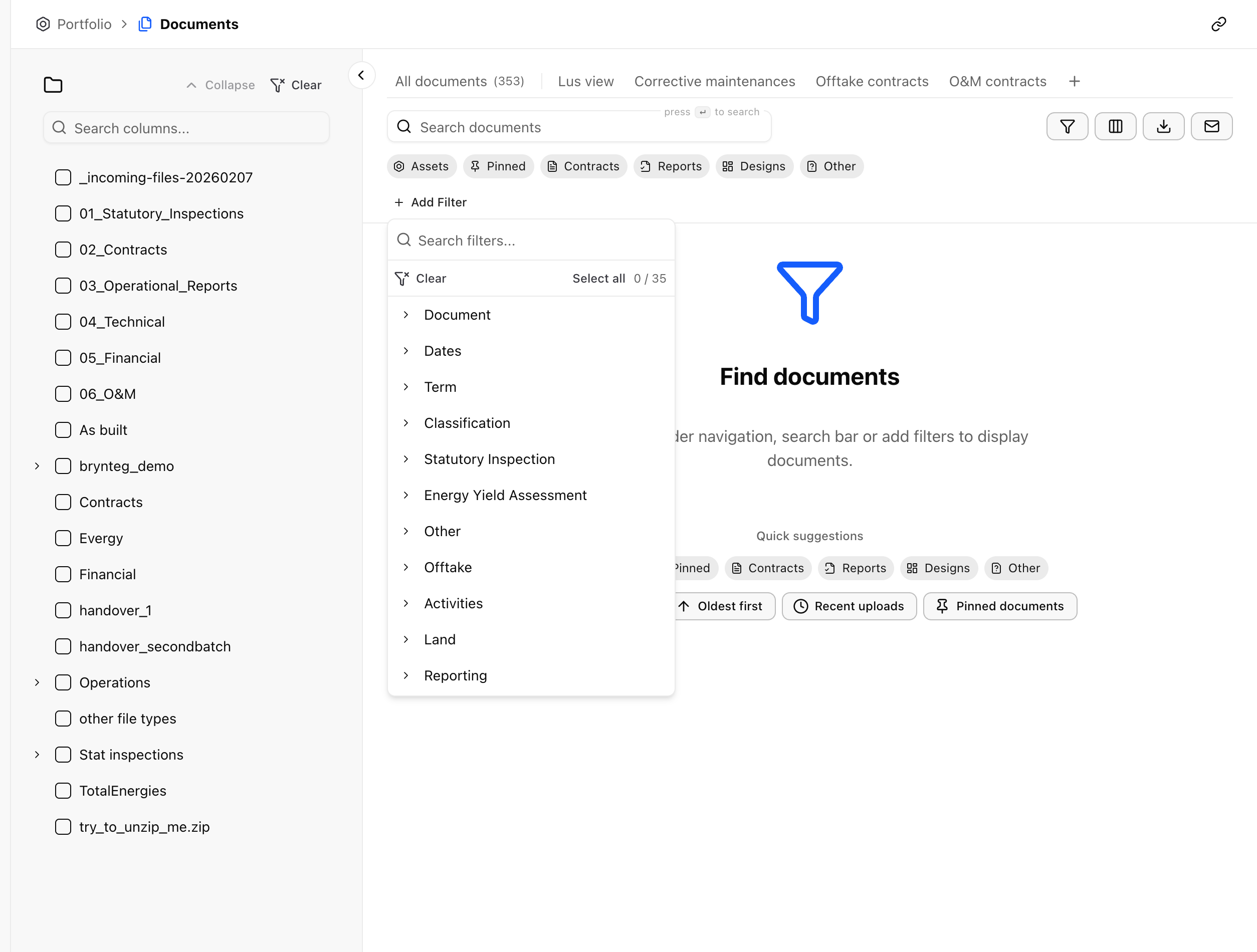
Every filter chip reads left to right as field, operator, value, and each part is its own click:
- Field. The column the rule applies to, for example Created At.
- Operator. How to compare, for example is after.
- Value. What to compare against, for a date field a day picked from a calendar.
Click any part to change it. The small cross at the end of the chip removes that filter and leaves the rest in place.
Add and clear filters
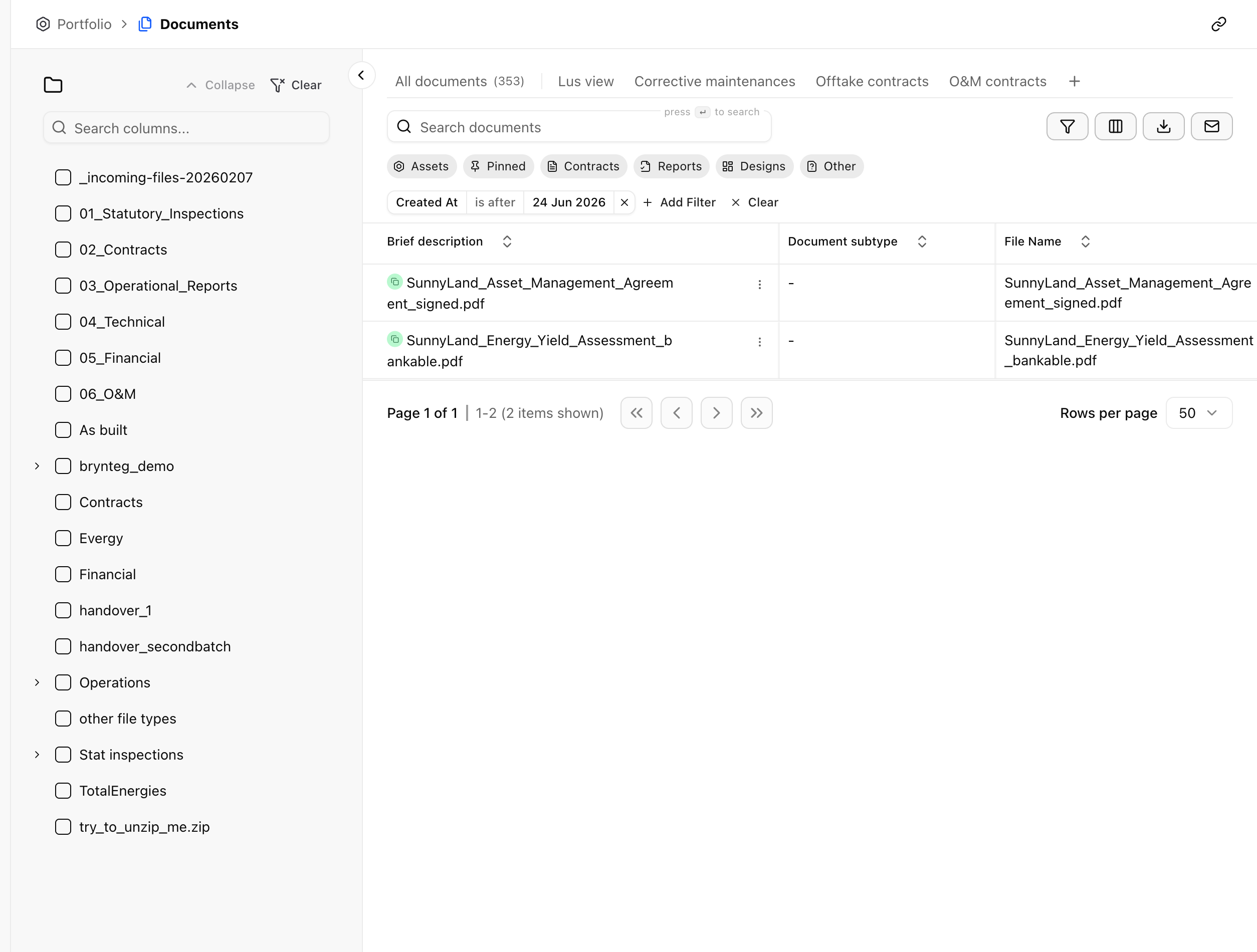
Section titled “Add and clear filters”Click Add Filter, then pick the column to filter on. A filter appears as a chip in the bar, ready for you to set its value. Add another for a second rule. For the most common filter combinations, the quick-filter chips above the bar apply a ready-made filter in one click.
To start over, Clear removes all of them at once.
Choose an operator and a value
Section titled “Choose an operator and a value”A filter’s operators depend on what kind of column it is:
- Text, for example a name or a description: is, is not, contains, does not contain, starts with, ends with, is empty, is not empty.
- Dates: is, is before, is after, is on or before, is on or after, is between.
- Options, for example a status or a type: is, is not, is any of, is none of.
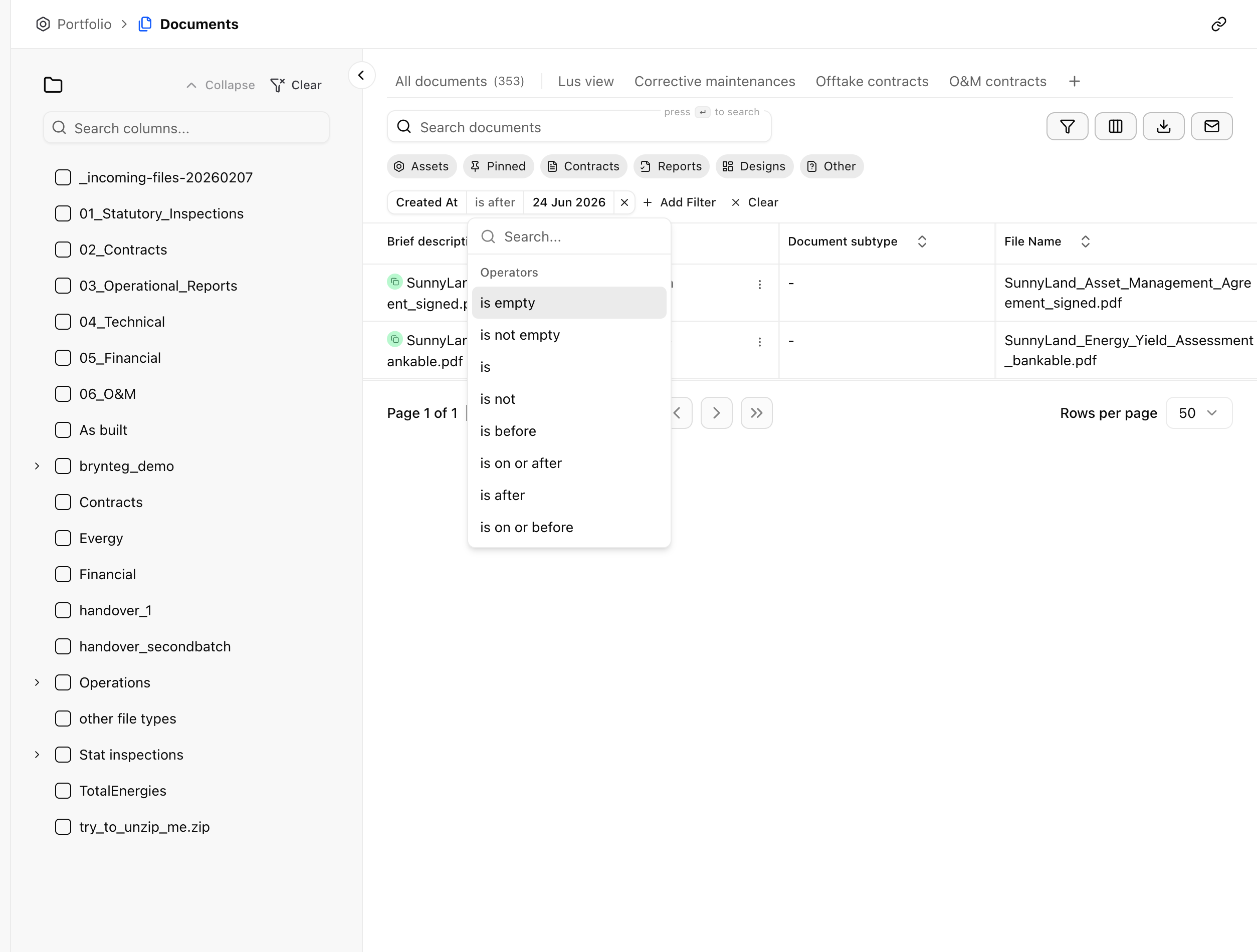
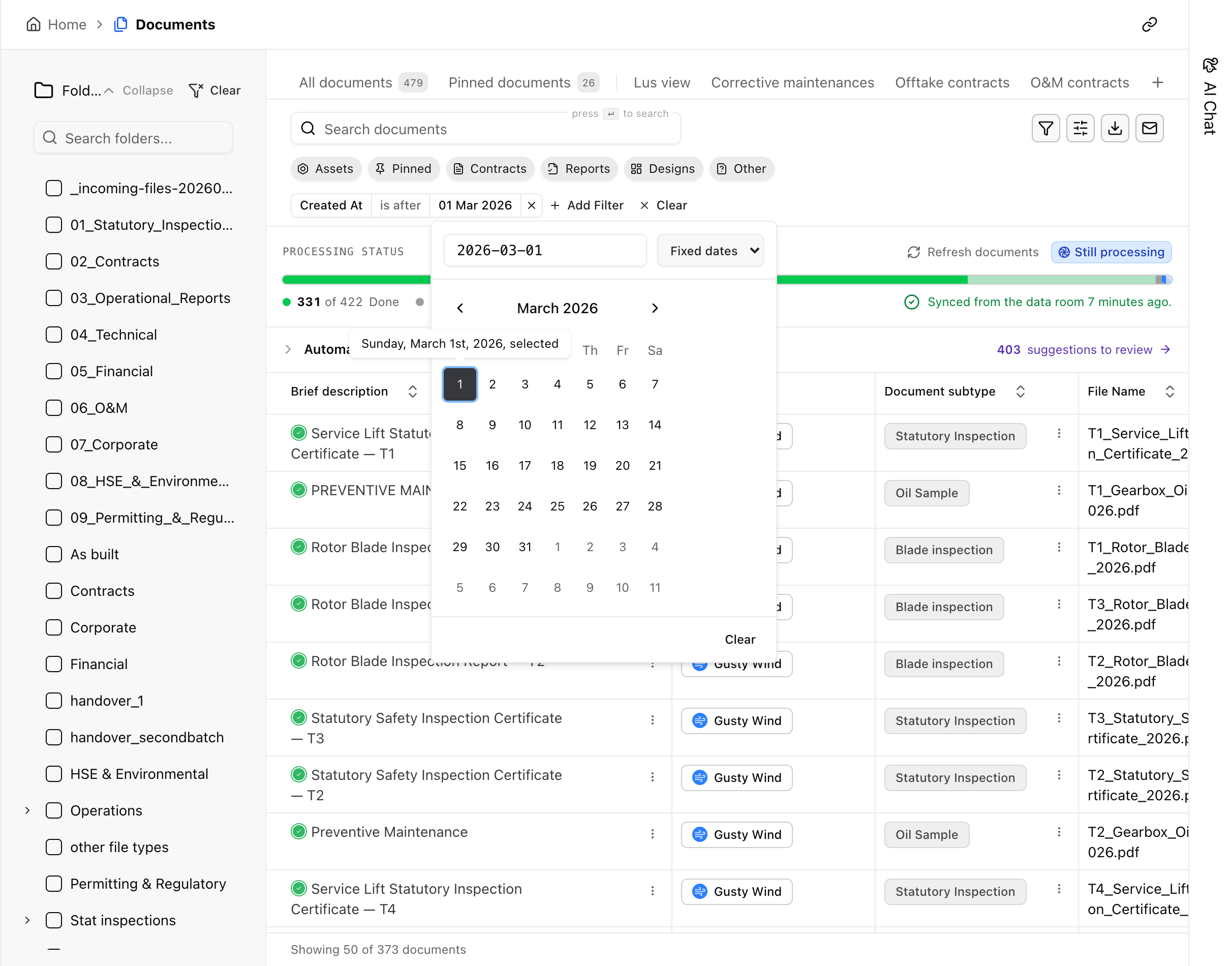
Clicking the last segment opens the value itself, and the field shapes it the same way. Options include a calendar for a date, a list of possible states for a status, or a text box for a name.
Save and share a view
Section titled “Save and share a view”Your filters, along with the sort, the columns, and the search, are in the page address. Copy the link and whoever opens it gets the same view, already filtered. When you come back to the same filters often, save them as a view. It then appears along the top of the table for next time.
Group the result
Section titled “Group the result”Filtering decides which rows a table shows. To split those rows into labeled sections instead, group the table by a column. Group by, in the Display options panel above the table, gives you one heading per value. Each heading shows a count of everything your filters match.
Limits
Section titled “Limits”Filters combine with and: a row shows only if it matches every filter in the bar.
Aevy lists columns A to Z inside their group, and lists the values inside a column’s picker the same way. The order is display only: a view you saved before comes back the same.
What’s next
Section titled “What’s next”- Grouping: the sections a filtered list splits into, and the counts on each heading.
- Documents: folders and quick filters, on top of the bar described here.
- Bulk updates: filter first, then set a field on every row you selected.