Getting around
The sidebar is how you move around Aevy. It runs down the left of each page and holds the Inbox, search, Home, the app’s pages, your assets, your favorites, and your recent records. When you open an asset, the sidebar lists that asset’s sections as well.
Anatomy
Section titled “Anatomy”The sidebar has two parts. The controls at the top are the same on every page. Below the line is where you are, and your own lists. Outside an asset, from top to bottom:
 12345678
- Inbox and fold. Inbox opens your notifications, and its badge counts what you haven’t read. The button beside it folds the sidebar. Aevy’s mark at the left of the row opens Home.
- Search. Search assets, docs… opens Search (
Cmd+K, orCtrl+Kon Windows) to find any record, saved view, or page by name. - Home. Opens Home, the page Aevy opens on when you log in.
- Browse all. Lists the app’s pages. The pages you pin appear beside it as icons.
- Portfolio. Opens a panel of your assets, which you can filter and group. Find an asset covers the panel.
- Favorites. The assets, records, and saved views you starred, and an Add favorite row that finds one by name. The favorites guide covers how starring works.
- Recent. The records you opened lately that aren’t favorites, newest first. Aevy keeps this list with your account, so it follows you between browsers.
- Your account. Your mode, What’s new, Settings, Support, and Log out.
Open a page
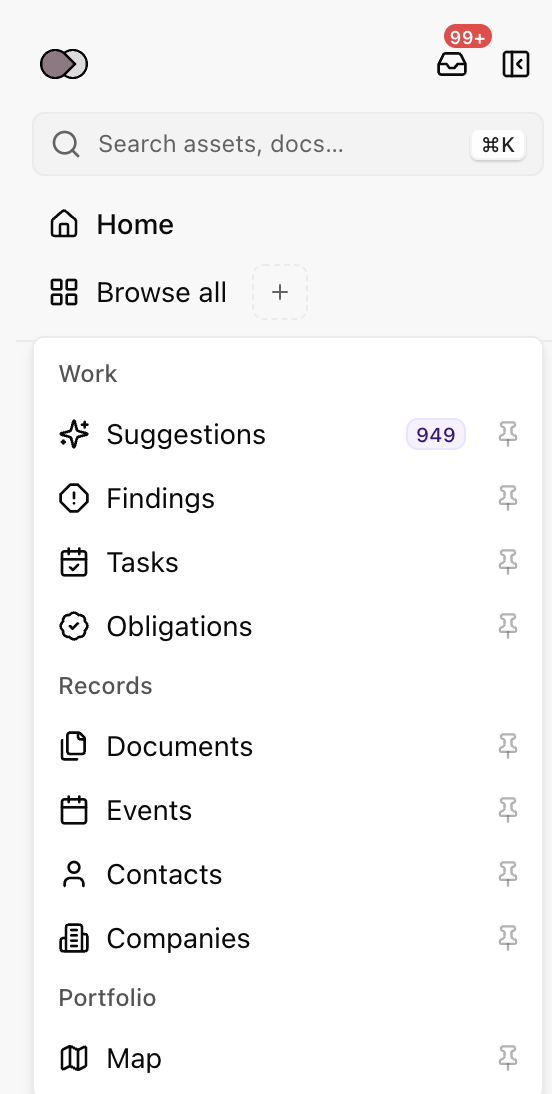
Section titled “Open a page”To open a page, click Browse all and then the page’s name. The list closes as the page opens. It groups the app’s pages under three headings, and lists only the pages your mode includes:
- Work. Suggestions, with the number waiting for your review, Findings, Tasks, and Obligations.
- Records. Documents, Events, Contacts, and Companies.
- Portfolio. Map, which shows your assets on a map.
Pin a page
Section titled “Pin a page”A pinned page is an icon on the Browse all line, one click away from any page. To pin a page:
- Click the dashed + at the end of the Browse all line.
- Click the page. Opened from +, the list pins the page you click instead of opening it.
To unpin a page, open Browse all and click the pin beside it. You can pin up to six pages. The line shows as many icons as fit the sidebar’s width, and once you pin more than three, Browse all shows only its icon. An icon can’t hold a number, so a pinned page with a count, such as Suggestions, shows a dot. Point at the icon to see the number.
Find an asset
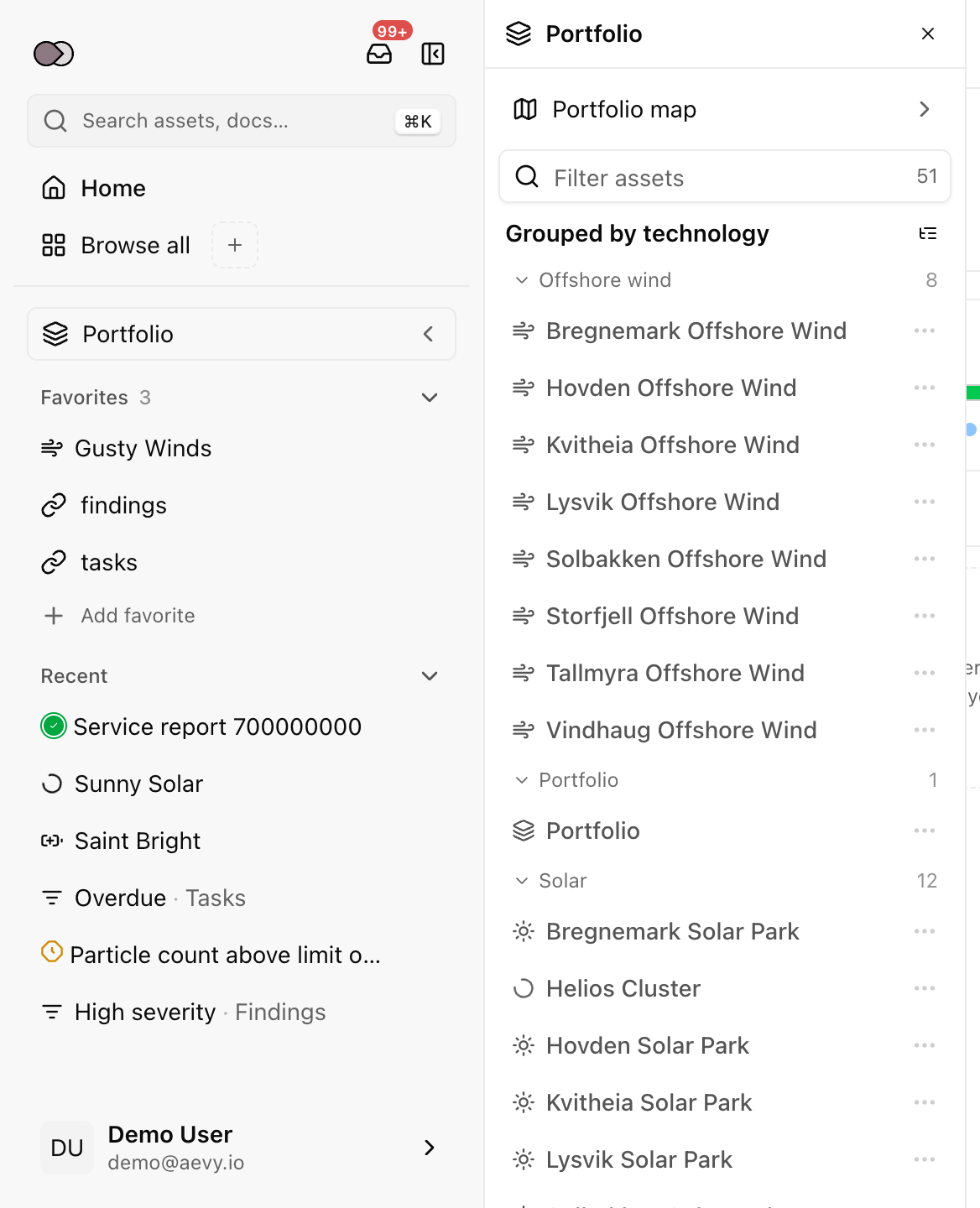
Section titled “Find an asset”Portfolio opens a panel beside the sidebar that lists your assets from A to Z. Click an asset to open it, and the panel closes. In the panel:
- Filter. Type part of a name in Filter assets, which has the cursor when the panel opens. The number in the field is how many assets you have.
- Group. The menu beside All assets groups the list by Technology or Country. Assets with no value go under Other, at the end.
- Map. Portfolio map opens your assets on a map.
To close the panel, press Esc, click outside it, or click its close button. Your browser remembers the grouping you chose.
Work inside an asset
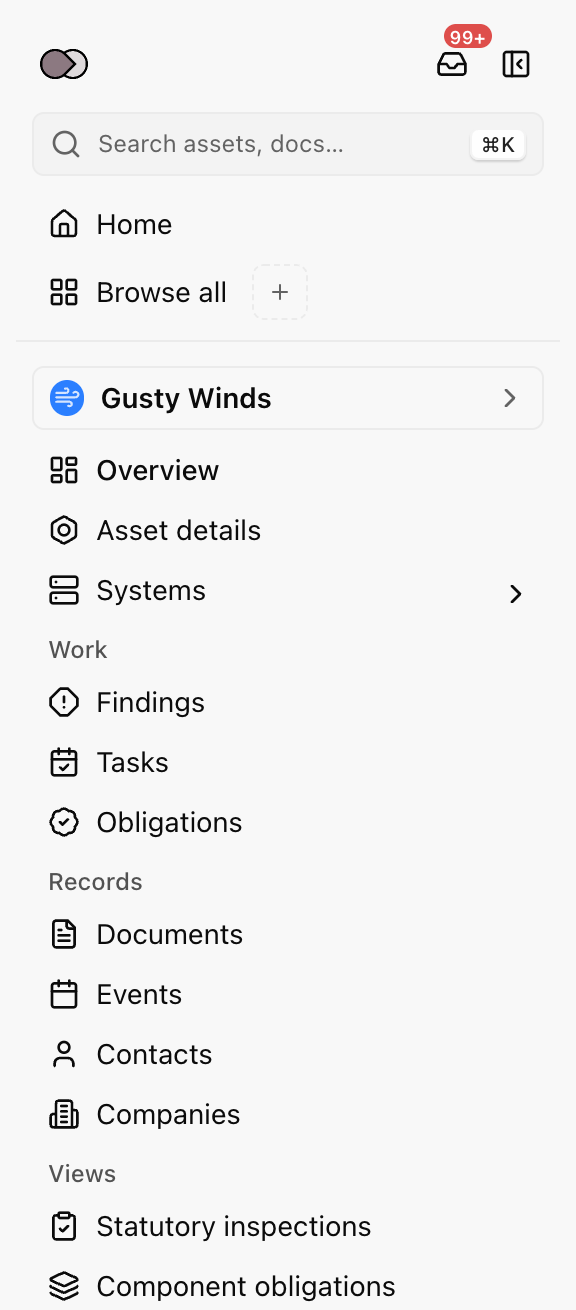
Section titled “Work inside an asset”When you open an asset, the controls at the top don’t change, and everything below the line switches to that asset. The asset page has no menu of its own. Compared with the sidebar outside an asset:
 123456
- Controls. The same as outside an asset.
- Asset name. The Portfolio button shows the asset’s name and icon. It opens the same panel, with this asset highlighted, so you can switch to another one.
- The asset itself. Overview, Asset details, and Systems. The chevron on Systems lists the asset’s systems.
- Work. The work on this asset, such as its findings, tasks, and obligations.
- Records. What the asset holds, such as its documents, events, and contacts.
- Views. Statutory inspections and component obligations, to read rather than to work in.
Your favorites follow the sections, the same list as outside an asset. Recent comes back when you leave. The asset overview guide describes each section.
To leave the asset, click Home, or open a page from Browse all.
Switch features on or off
Section titled “Switch features on or off”The Features settings decide which features your organization uses, and with them which pages and asset sections the sidebar lists. To open them, click your account at the bottom of the sidebar, then Settings and Features. Each feature has a card with a switch. The tabs along the top show the features each mode includes.
A switch applies to the whole organization. When you switch a feature off, Aevy removes its section from each asset in the sidebar for all members, and its page from Browse all where it has one. Aevy asks you to confirm first, and deletes nothing: switch the feature back on and its records are where you left them.
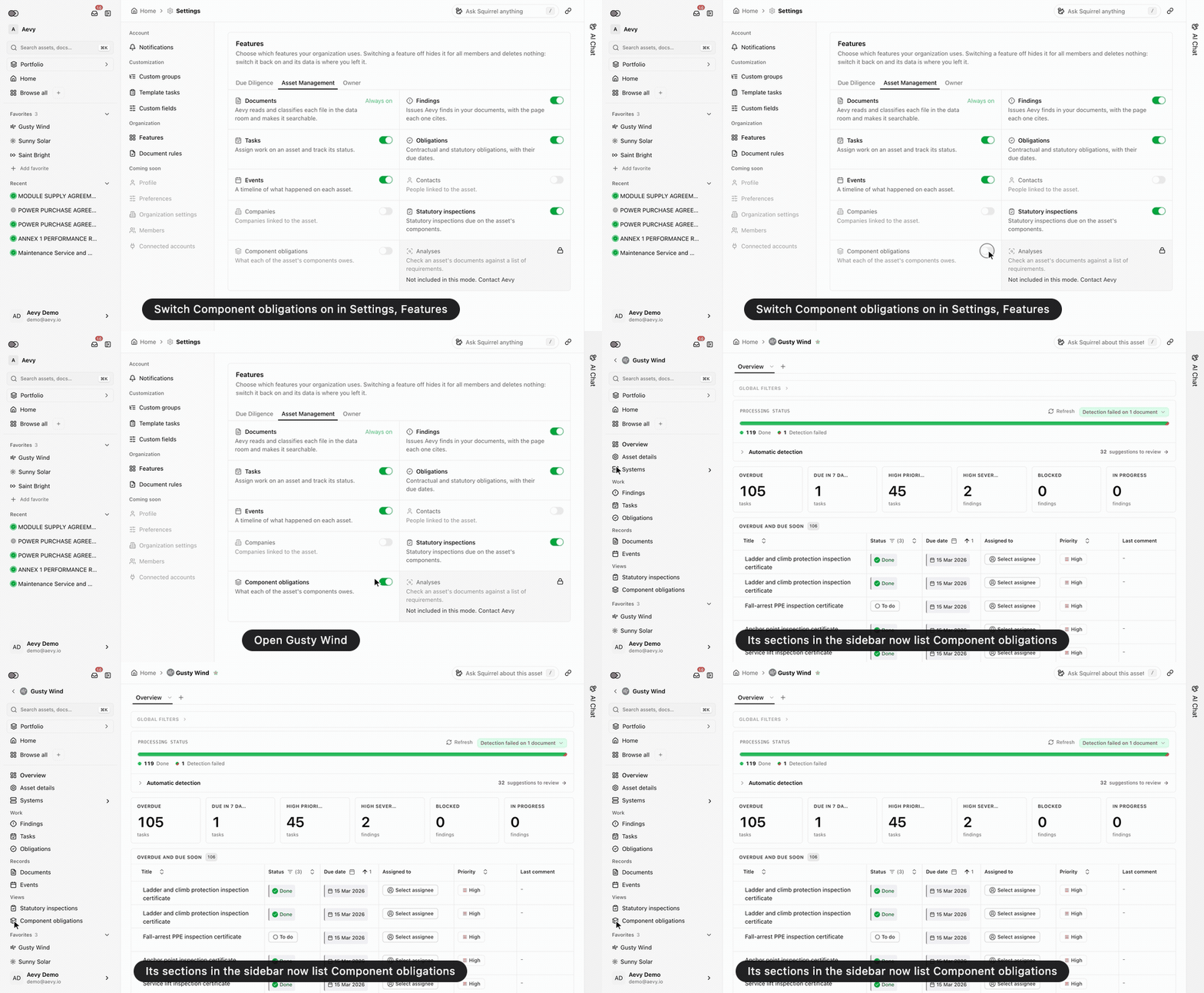
Only an organization administrator can change a switch. Some cards have none: Documents shows Always on in Due Diligence and Asset Management, and a card with a lock reads Not included in this mode. Contact Aevy.
Fold the sidebar
Section titled “Fold the sidebar”To fold the sidebar to a column of icons, click the fold button at its top right (Cmd+B, or Ctrl+B on Windows). To open it again, click the icon at the top of the column, or press the same keys. The sidebar stays open or folded on all pages until you change it, and your browser remembers the choice.
Folded, the sidebar keeps the Inbox, Home, Browse all, your pinned pages, and Portfolio as icons. The star opens your favorites as a list. The Recent list comes back when you open the sidebar again. Pointing at the folded sidebar doesn’t open it.
The line along the sidebar’s right edge is a handle. Drag it to set the width. Click it to fold the sidebar, or drag it well past the narrowest width for the same effect. Double-click the handle to reset the width.
What’s next
Section titled “What’s next”- Core concepts: the words the pages use, defined once.
- Favorites and pinning: what the star keeps, and how pinned documents differ from pinned pages.
- Search: find any record, view, or page by name.
- Squirrel: what the chat panel can answer, and how to ask.