Favorites and pinning
Favorites in Aevy keep your daily few one click away. Star an asset, a record, or a saved table view and it appears under Favorites in the sidebar. Pinning does the same for documents, keeping the ones that matter on their asset and under the Pinned filter.
Anatomy
Section titled “Anatomy”Favorites is the list under the line in the sidebar, and it’s your shortlist. Whatever you star appears here, the newest at the end, with the count beside the heading. Click the heading to collapse the list. Inside an asset, your favorites follow the asset’s sections. Folded, the sidebar shows a star that opens them as a list.
The Add favorite row at the end of the list is the other way in. It searches your assets, documents, tasks, and saved views by name, and picking one stars it. The app’s pages aren’t in that search: the sidebar keeps those as pinned pages instead.
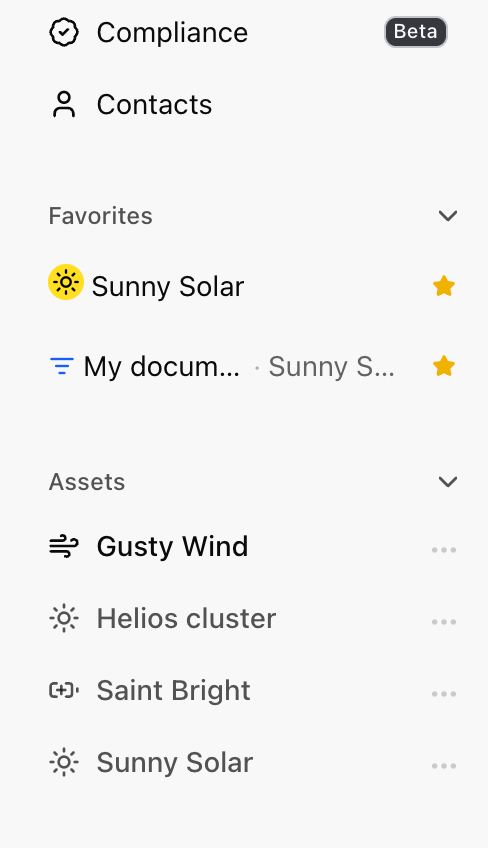
To remove a favorite, point at its row in the sidebar and click the star, or click the star wherever you added it.
Favorite an asset
Section titled “Favorite an asset”Open an asset and click the star next to its name in the header. The asset joins your Favorites straight away. Click the star again to take it off.

Save a view to Favorites
Section titled “Save a view to Favorites”A saved view is a named set of folders, filters, and columns on the Documents page or any other table, kept for reuse. Star a saved view and it appears in Favorites alongside your assets, so a shared or often-used view is one click from anywhere.
Pin a document
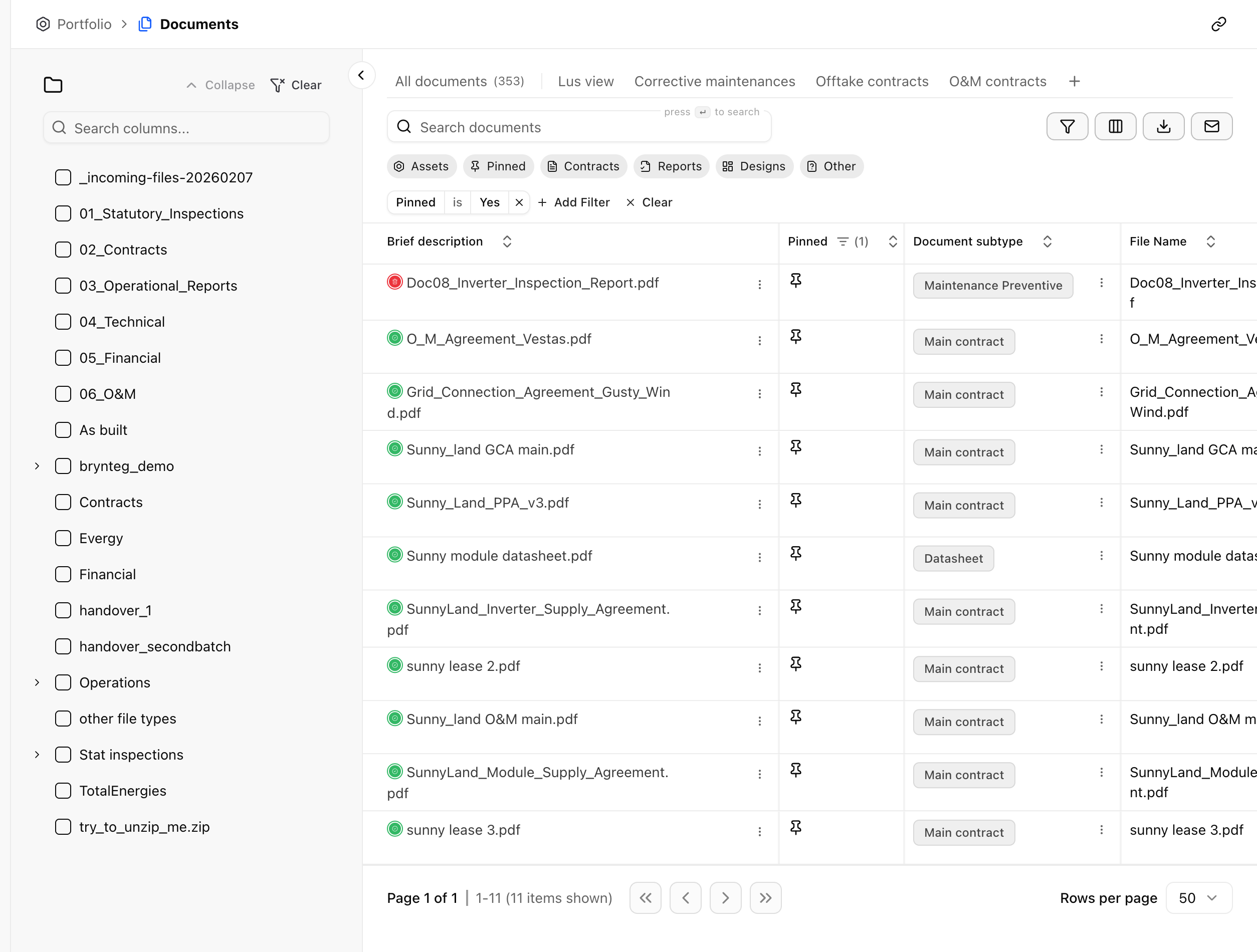
Section titled “Pin a document”Pinning is favoriting for documents, scoped to an asset. Pin the documents that matter on a given asset, for example the current contract or the most recent inspection. To pin one, right-click its row in a table, or open the menu on the document’s preview, and click Pin document. Pinned documents appear under Pinned documents on that asset, and under the Pinned filter on the Documents page. Unpinning requires confirmation.
Squirrel can propose one too. Ask it which document governs something on an asset. The answer names the document and offers the pin on a pill beside it, with accept and dismiss. The pin is a draft like every other suggestion.
Limits
Section titled “Limits”A pin isn’t personal. Favorites are yours alone. A pinned document is on the asset for everyone in your organization instead.
A pinned document is also different from a pinned page. A pinned page is an icon on the Browse all line in your sidebar, and only you see it. The getting around guide covers pinned pages.
What’s next
Section titled “What’s next”- Documents: the Pinned filter, and the views a star keeps.
- Getting around: the rest of the sidebar, and pinned pages.
- Suggestions: accept or dismiss a proposed pin, like any other draft.