Asset overview
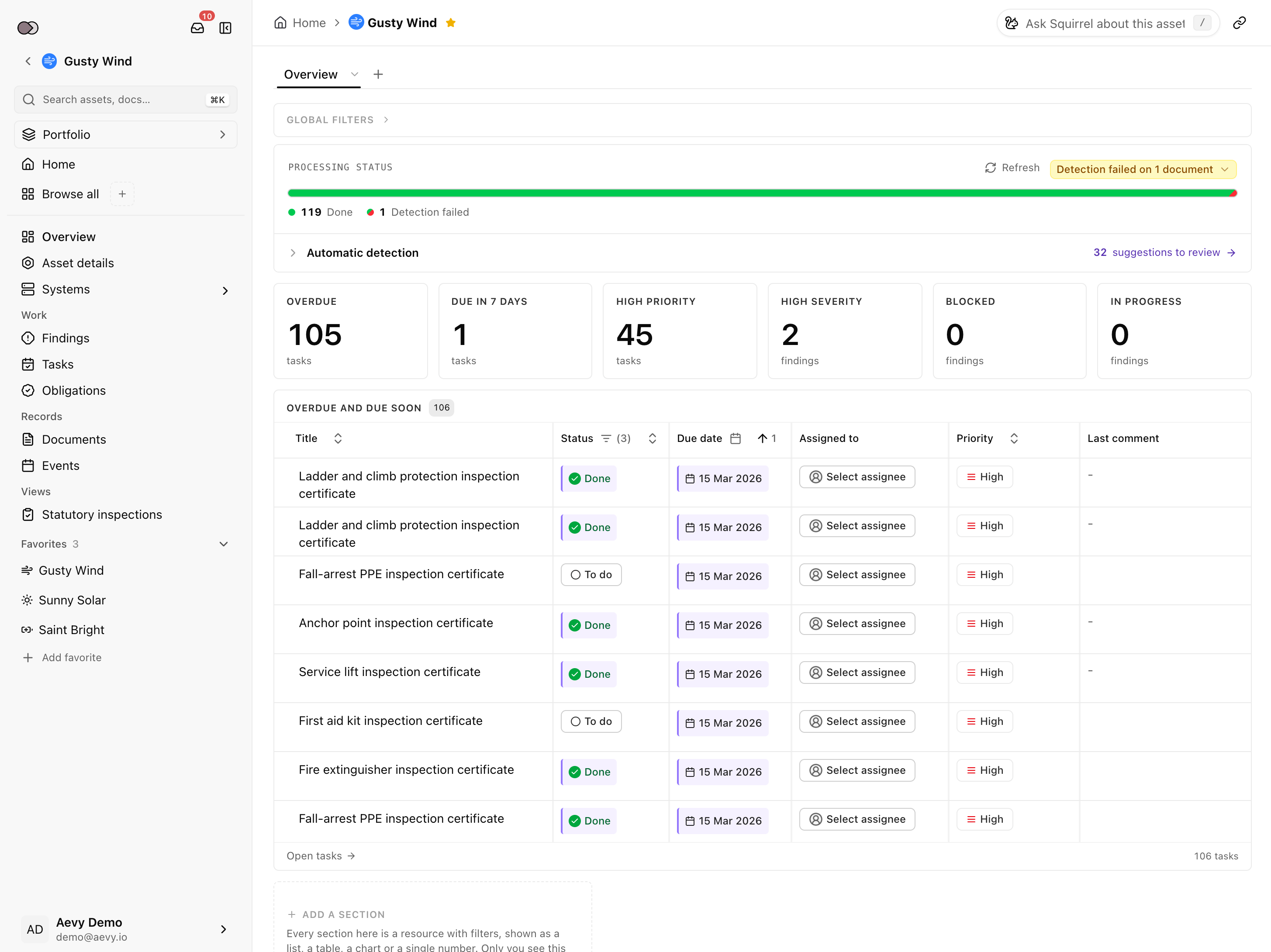
An asset’s page is where you read one asset. While it’s open, the sidebar lists the asset’s sections, and each section is a page of its own. Overview is where it opens: the processing status of the asset’s documents, then a dashboard of the sections you add for that asset.
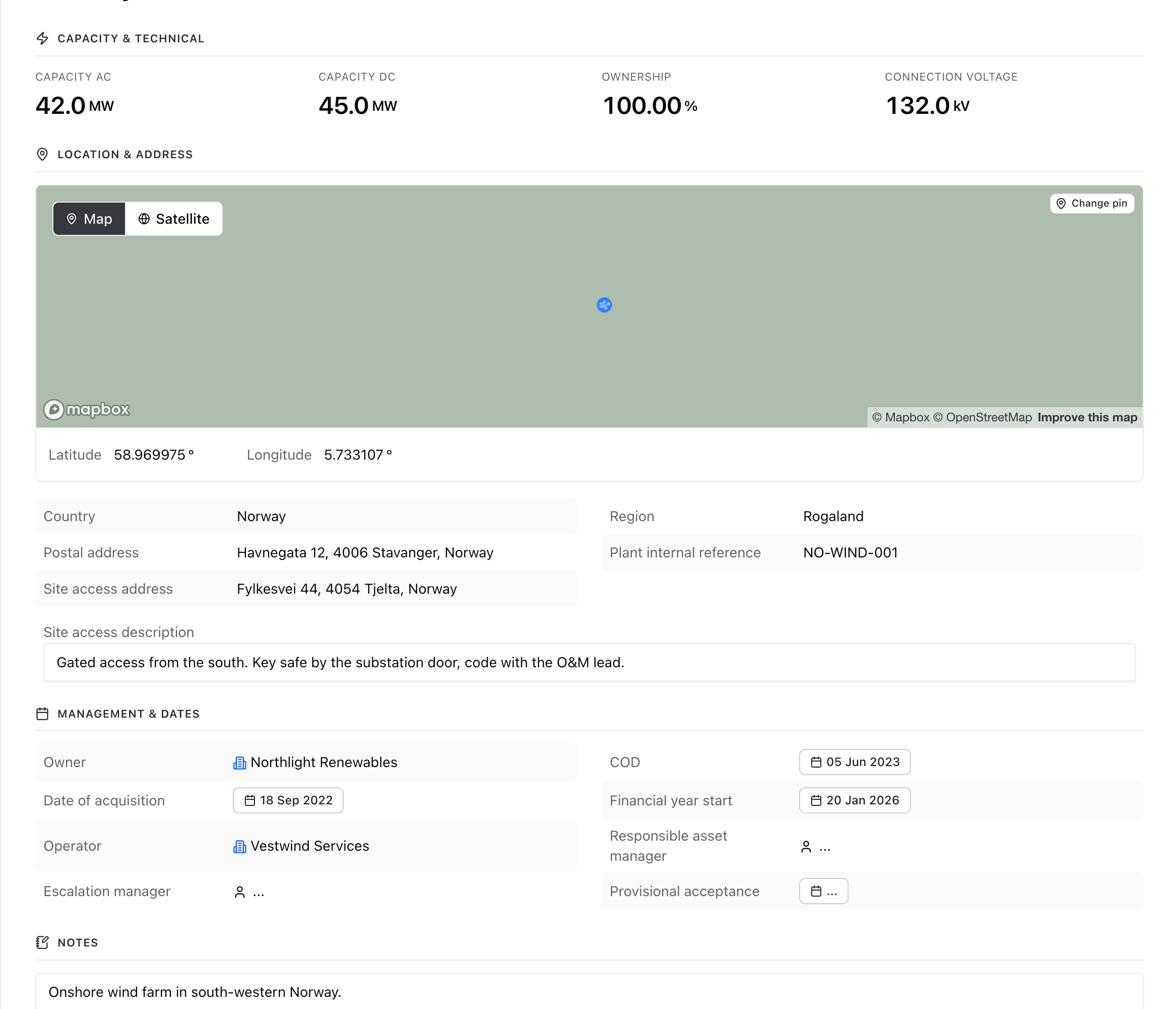
Systems, and the operational fields on Asset details, such as operator, responsible asset manager, escalation manager, and the acceptance dates, are Asset Management. In Due Diligence, an asset is something you review rather than run, so those rows are absent. Switch mode from your account menu at the bottom of the sidebar.
Anatomy
Section titled “Anatomy”Click an asset in the sidebar’s Portfolio panel, or its name anywhere in Aevy, to open its Overview. Each section in the sidebar is a page with an address of its own. A link you send opens on the page you were reading, rather than at the top of the asset. The star next to the asset’s name in the breadcrumb marks it as a favorite: see the favorites guide.
While the asset is open, the sidebar lists its sections, with your favorites below them. When the asset has gone four hours without a completed sync from your source, a line across the top of the page says when the last successful sync was, and that Aevy is syncing again. The asset’s name above the sections opens the Portfolio panel, where you can switch to another asset. The getting around guide covers the rest of the sidebar.
The sections are the asset’s table of contents, in four groups. The order is the question each group answers, not an alphabet:
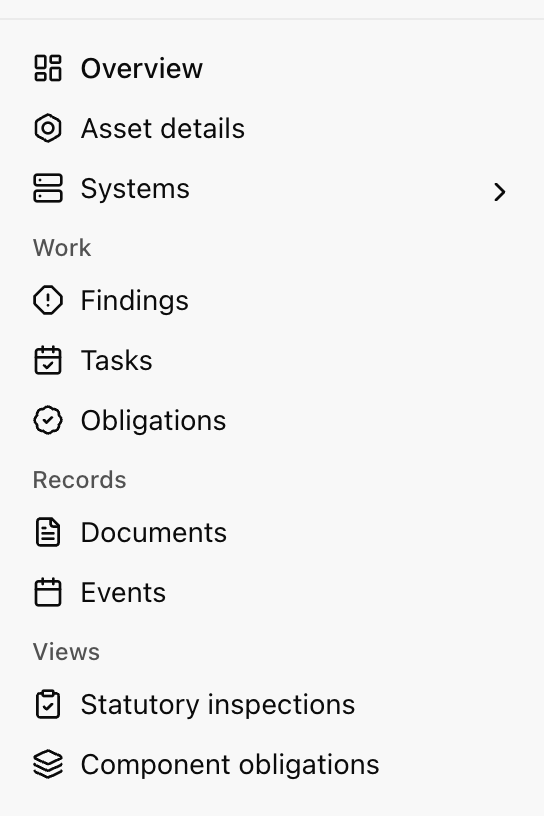
- The asset itself. Overview, Asset details, and Systems, whose chevron opens the list of systems underneath it, so you reach one without leaving the page you’re on.
- Work. Findings, Tasks, and Obligations: the queues somebody works down.
- Records. Documents, Events, Contacts, and Companies: what the asset has, rather than what anyone is doing about it.
- Views. Statutory inspections and Component obligations: recurring demands on the plant and its parts, read down rather than worked.
There is one Findings row in every mode, and defect or risk is a field on the record.
Read the Overview dashboard
Section titled “Read the Overview dashboard”Overview opens on Processing status: how far Aevy has got with the asset’s documents, the same bar as on the Documents page. Click a segment to open the Documents page filtered to this asset and those documents. The badge beside the bar says whether the asset’s sync and processing are done: how your data gets in reads it. Processing status is always first, and you can’t move or remove it.
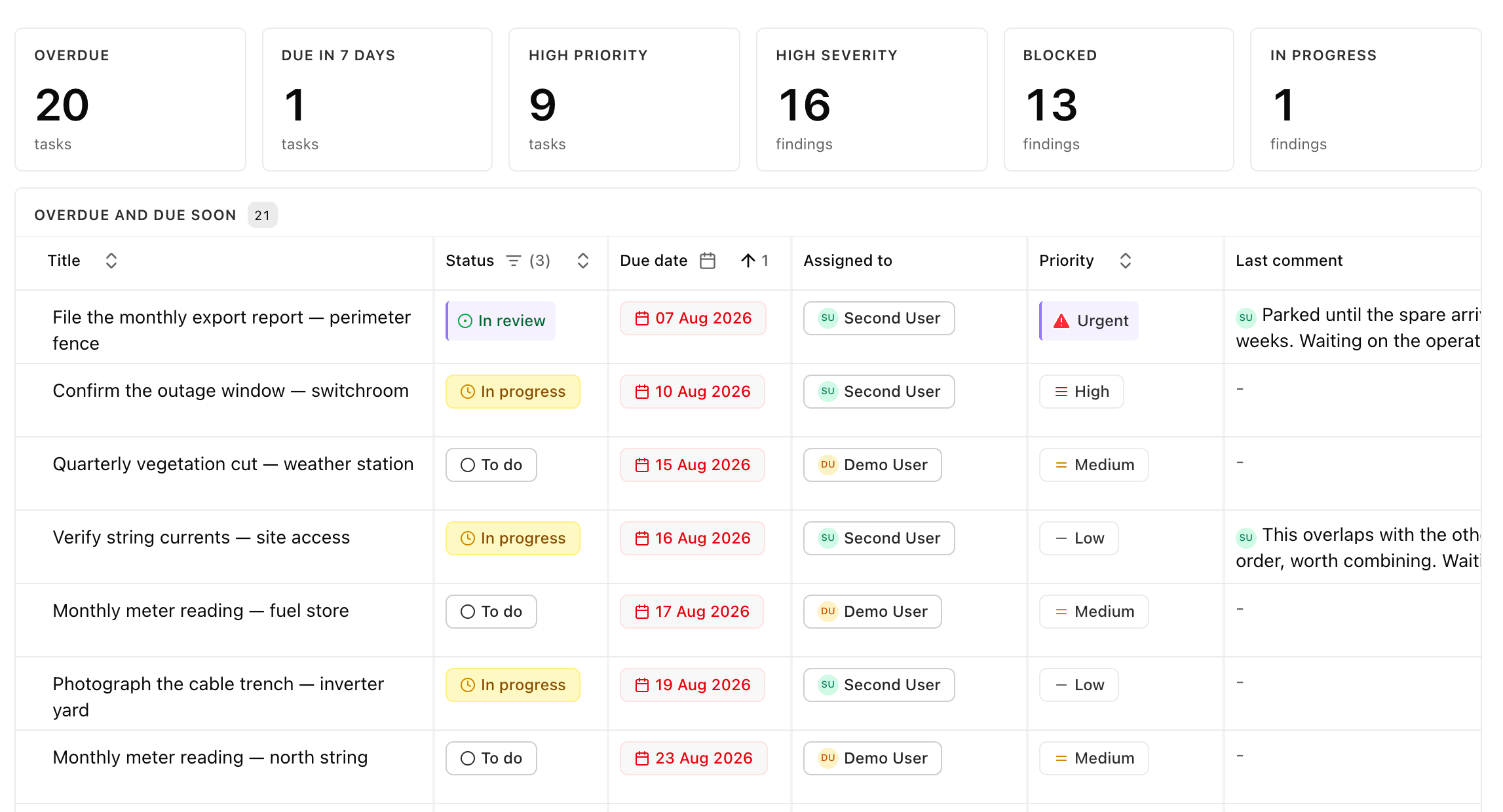
Below it are the sections you added for this asset, each one a resource with its own filters and display, such as a table of overdue tasks or a count of open findings. A row edits where it stands, and clicking one opens the record in a drawer. Overview has no sections until you add them, and it’s the same in all modes.
Arrange the dashboard
Section titled “Arrange the dashboard”Overview works the same way as Home, scoped to this asset, including text sections and asking Squirrel to build the page. Add a section at the end of the page adds one, and a section’s menu has Edit section, Move earlier, Move later, Width, and Remove. Global filters shows the filters a click on a chart has applied to the whole page.
Your layouts for the asset are tabs above the sections, starting with one named Overview. Add another with the + at the end of the tabs, and right-click a tab to rename it, set it as your default, or delete it. Layouts are yours alone and belong to this asset: what you arrange on Home doesn’t appear here.
Edit asset details
Section titled “Edit asset details”Asset details shows what the asset is: Capacity & Technical, Location & Address, Management & Dates, and Notes. Edits save in place, so there is no page-level edit mode and no Save button to forget. The activity log at the foot of the page records every one of those changes with who made it.
Limits
Section titled “Limits”Financials aren’t included here: the page shows the asset’s operational state, not its books. Overview also has no fixed charts: an obligations bar or a findings trend is a section you add. Pinned documents aren’t on Overview either. They appear under Documents.
What’s next
Section titled “What’s next”- Favorites and pinning: the star on the breadcrumb, and where pinned documents sit instead.
- Systems and components: the equipment behind the Systems section in the sidebar.
- Home: the same dashboard across all your assets.
- Getting around: the rest of the sidebar.