Findings
A finding in Aevy is something wrong on an asset, tracked from report to resolution. Each one names the asset and the system or component it affects, whether it’s a defect or a risk, a severity from low to urgent, and a status. That makes the open work across your portfolio one filterable list rather than a scatter of inspection reports.
Aevy called findings punchlist items in Asset Management and risks in Due Diligence until July 2026. There is now one Findings page and one Findings tab on every asset, whichever mode you work in. Defect or risk is a field on the record instead of a separate screen. Old /punchlist/ links to this guide still resolve.
Anatomy
Section titled “Anatomy”The Findings page holds every finding across your portfolio: a worn brake pad, an expired certification, a rust spot flagged in a statutory inspection, or contractual exposure surfaced in a deal review.
Every finding has a type:
- Defect. A physical fault on the equipment: something broken, worn, or out of spec, matching ISO 9000’s defect or EN 13306’s fault.
- Risk. An exposure rather than a breakage: a gap, a liability, a condition that could cost you later. This is what a due diligence review produces.
A strip of cards above the rows summarizes the list, and what it counts follows your mode. In Due Diligence it shows High severity and Resolved in 30 days as counts and the findings By severity. In Asset Management it shows them By severity, By component, and By asset, and an asset’s Findings section adds By system. Click a count or a slice and the whole page takes that filter.
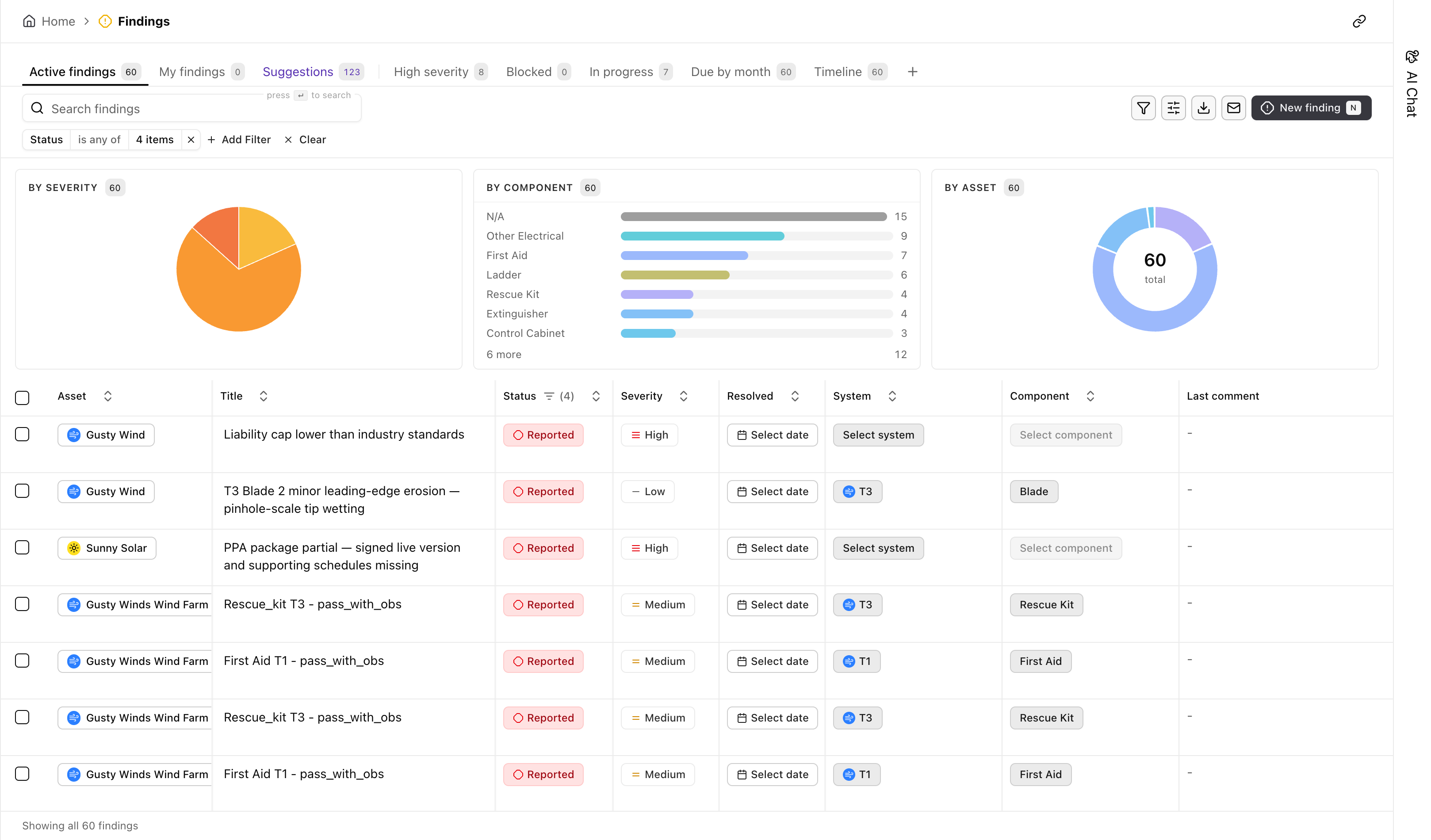
Each row names the asset, the problem in a line, and its severity, from Low through Medium and High to Urgent. The status ladder runs Unverified, Reported, In progress, Blocked, and In review, ending in Resolved, No issue, or Canceled. The System and Component columns tie the finding to the equipment it affects, so a defect rolls up from the part to the site. Resolved has the date you cleared it, and Last comment shows the most recent word on it without opening the row.
Find a finding
Section titled “Find a finding”The list filters like every table in Aevy. See the table filtering guide. What’s specific here:
- Saved views. Active findings, My findings, High severity, Blocked, and In progress are preset views, each with its own count. Due by month draws open findings on a timeline, grouped by the month they’re due.
- Search. Search findings matches on the title.
- Filter. Filter and Add Filter narrow by any column, for example severity, status, or the defect and risk type.
- Group by. Split the list into sections by severity, status, or asset, each heading counting every finding that matches your filters. See the grouping guide.
Act on a finding
Section titled “Act on a finding”- Create. New finding logs one against an asset.
- Bulk update. Select rows with the checkbox on the left. Then set a status, a severity, an assignee, or another field on one of them, and every selected finding takes it. See the bulk updates guide.
- Accept a proposed finding. Findings Aevy proposes wait under the Suggestions tab, with their count on the tab. Each proposed row is tinted and has Accept and a dismiss button of its own. Accept all at the top of that tab takes them all.
- Send. Send emails a finding out to whoever needs to act on it.
- Export. Export takes the current view out as a file.
Limits
Section titled “Limits”Findings that Aevy reads from an inspection report don’t join your active findings directly. They arrive as suggestions, and each one waits under the Suggestions tab until you accept it.
What’s next
Section titled “What’s next”- Tasks: the repair a finding calls for is a task.
- Events: the visit that repair happens on is an event.
- Asset overview: its Findings tab shows this same list scoped to one site.
- Statutory inspections: a finding raised off an inspection also shows in that asset’s inspection grid, in the cell for the part it’s on.