Grouping tables
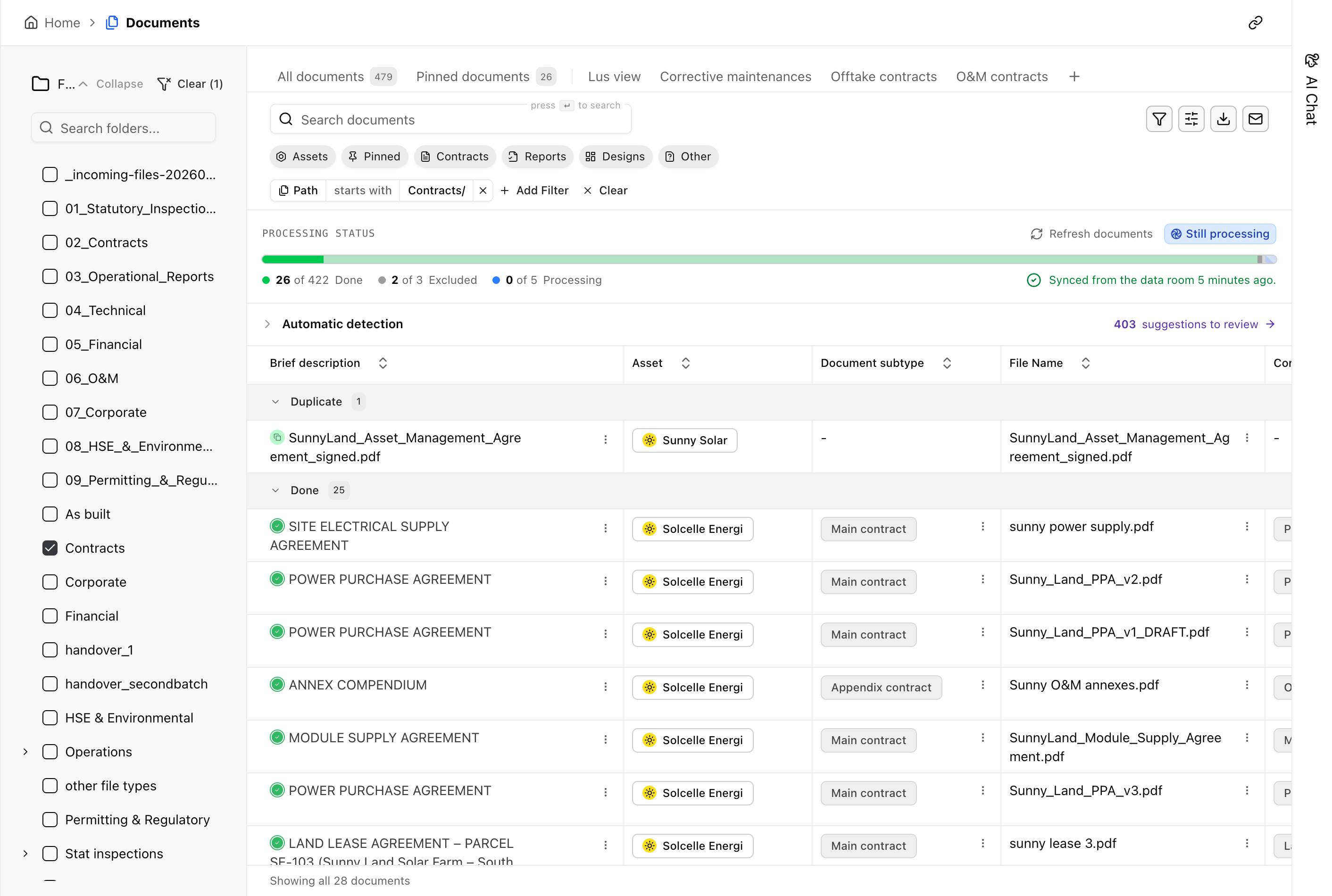
Grouping breaks a table into sections by one column. Pick Status, and the rows appear under a heading per status, each heading showing the number of rows in that bucket. The count covers everything your filters match, not just the rows on screen. Grouping works on every table that shares the filter bar, and it saves with the view.
Anatomy
Section titled “Anatomy”A grouped table is one section per value, each under a heading with a number. That number is a count over everything your filters match, so a section shows its real size before you scroll into it. A section appears even when none of its rows have loaded yet. A status with 400 documents shows up as soon as you group, whether or not you have scrolled that far. And the number doesn’t move as you scroll. Rows appearing underneath a heading don’t change what the heading says.
Rows fill in as you reach them, and there is no pager underneath. The table loads a first batch per section and asks for more when you scroll to the end of what it has.
Group a table
Section titled “Group a table”Grouping is in the Display options panel, which opens from the sliders button in the row of buttons above any table, next to the filter and export controls. Click the button on the Group by line, pick a column, and the table redraws as one section per value. That button’s tooltip names the active axis, for example “Group by: Status”.
The list of axes is the table’s own column list, sorted into the same categories the filter and column pickers use. A search box precedes the list. Type three letters of a column name to jump to it. None is at the top of the list and returns the table to a flat list.
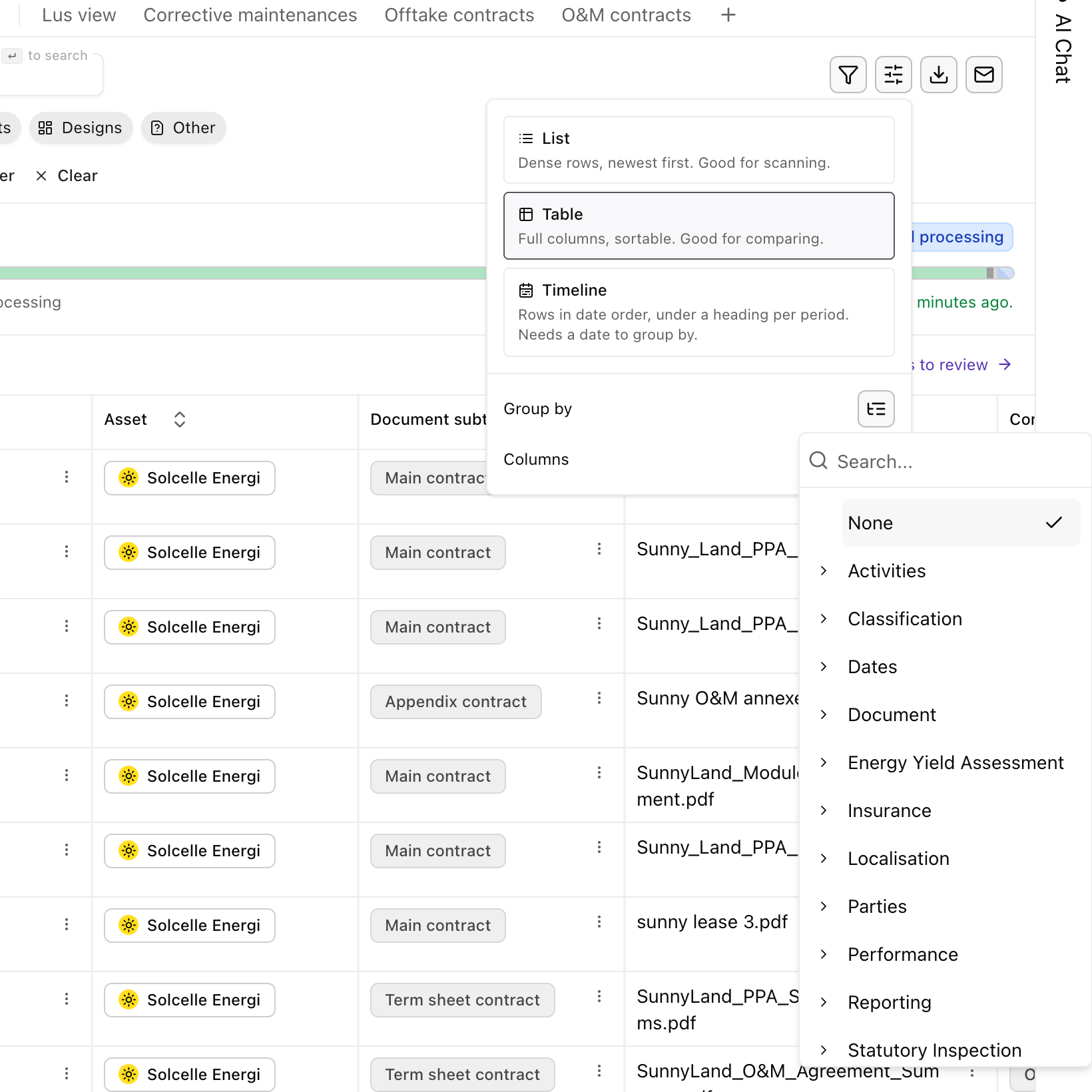
You can group by any column that holds a small set of named values, and that’s most of what you would reach for:
- Statuses and types on any table: document status, document type, finding severity, task priority, event type.
- Columns naming a record: the asset a document belongs to, the system it covers, the person assigned to a piece of work.
- Text columns that behave like a set, where Aevy marks them as worth grouping: Industry on Companies, Job title on Contacts.
- Dates, for example a due date or a created date. A Period line then appears in the panel, where you choose Day, Week, Month, Quarter, or Year. Each section is one period.
Rows with nothing in the grouped column collect under a section called N/A, and that section sorts last however its name would otherwise fall. Periods sort oldest first, and a status or other column with a fixed list of values sorts in the order of that list. Every other section sorts alphabetically by its label.
Fold a section away
Section titled “Fold a section away”Every heading has a chevron, and clicking it folds that section’s rows away and leaves the heading and its count standing. The heading and its chevron are the same in the list display as in the table.
Save grouping with a view
Section titled “Save grouping with a view”Grouping combines with everything else the table does. Filters still apply, and the counts follow them: filter to one asset and every heading recounts against that asset. Search, sorting, and your chosen columns all keep working underneath the sections.
Save it as a view and the grouping saves with it, alongside the filters and columns. A view your team opens next week appears grouped the way you left it. A section on your overview keeps its grouping the same way.
Limits
Section titled “Limits”Columns where a row can hold several values at once, for example a list of tags, and free-text columns such as a description aren’t offered. Folding a section doesn’t become part of the view either. Aevy doesn’t save it with the view or share it by a link, and changing display starts every section open again.
What’s next
Section titled “What’s next”- Table filtering: filtering answers “show only these,” where grouping answers “how’s this split.”
- Bulk updates: once a section holds exactly the rows that need the same change, one action makes it.
- Documents, findings, and tasks: the tables that get long enough to want grouping.