Home
Home is the first page you see in Aevy. It’s your own dashboard: sections you choose, each one a list, a table, a chart, a number, or a map of one kind of record, across all your assets or narrowed to one. Only you see your layout. A new Home shows the processing status of your documents and nothing else until you add sections.
Home replaced the Portfolio page in September 2026, at the same address, so links to the Portfolio open Home. To see your assets as a list or on a map, add an assets section to Home, or use the Portfolio panel in the sidebar.
Anatomy
Section titled “Anatomy”Home opens after you log in. The Home row in the sidebar, directly above Browse all, returns you to it from any page. Home looks the same in all modes. From top to bottom:
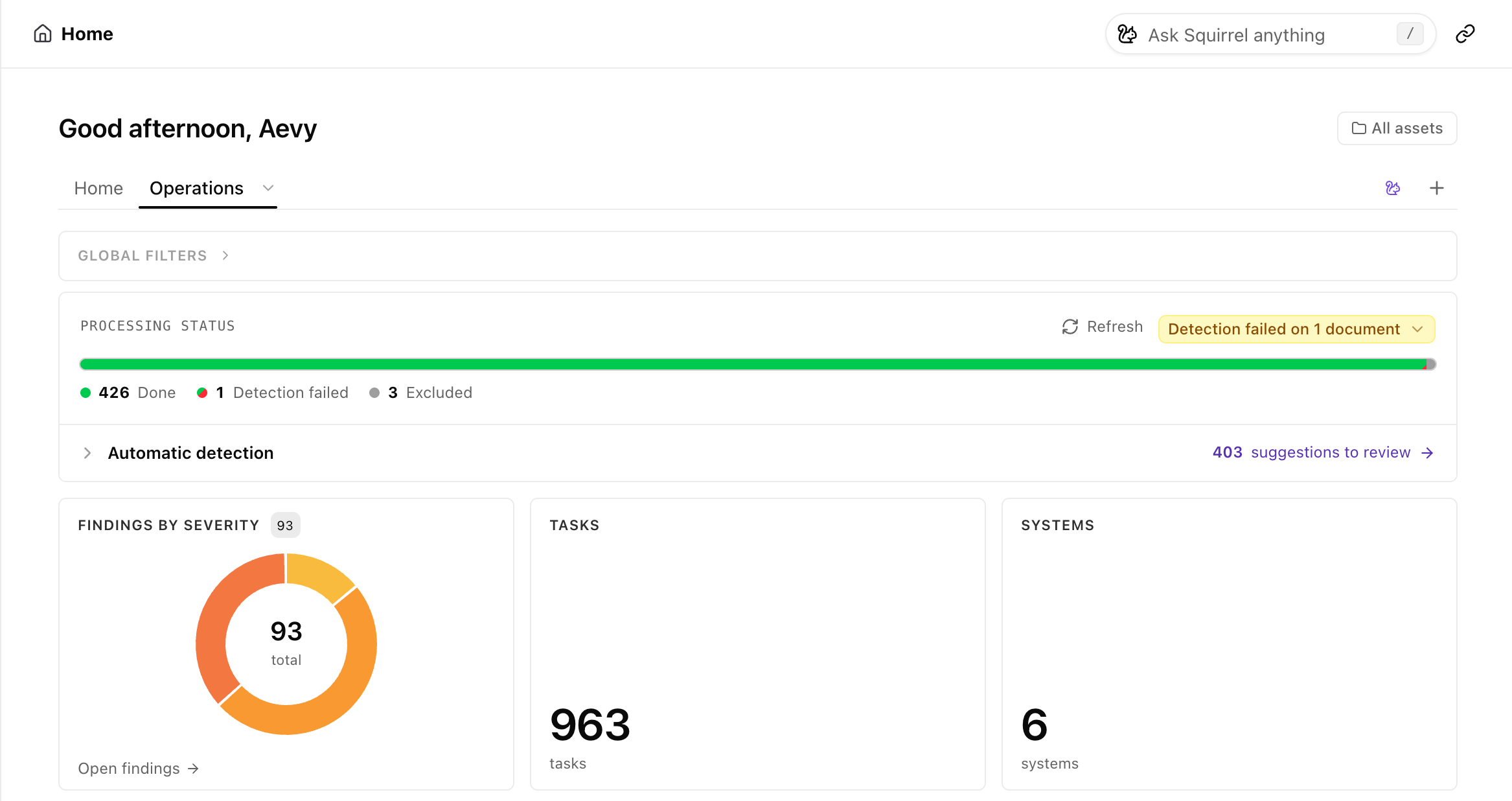
- Greeting and scope. A greeting with your first name, and the All assets picker, which narrows all sections to one asset.
- Layout tabs. Your layouts, as tabs. The first one is named Home.
- Global filters. A collapsed row that shows the filters applied to the whole page. It opens by itself when you click a part of a chart, because that click filters the matching sections further down the page too. A click on an assets chart also narrows the sections of records on those assets, such as tasks, findings, and documents. Their filter chips name the source, for example Assets: Country. A click on a companies chart narrows contacts, findings, and assets the same way.
- Processing status. How far Aevy has got with your documents, the same bar as on the Documents page. Click a segment to open the Documents page filtered to those documents. This section is always first, and you can’t move or remove it.
- Your sections. The sections you added, in the order you set.
- Add a section. The dashed box at the end of the page.
Add a section
Section titled “Add a section”A section is one kind of record with filters, drawn the way you choose. To add one:
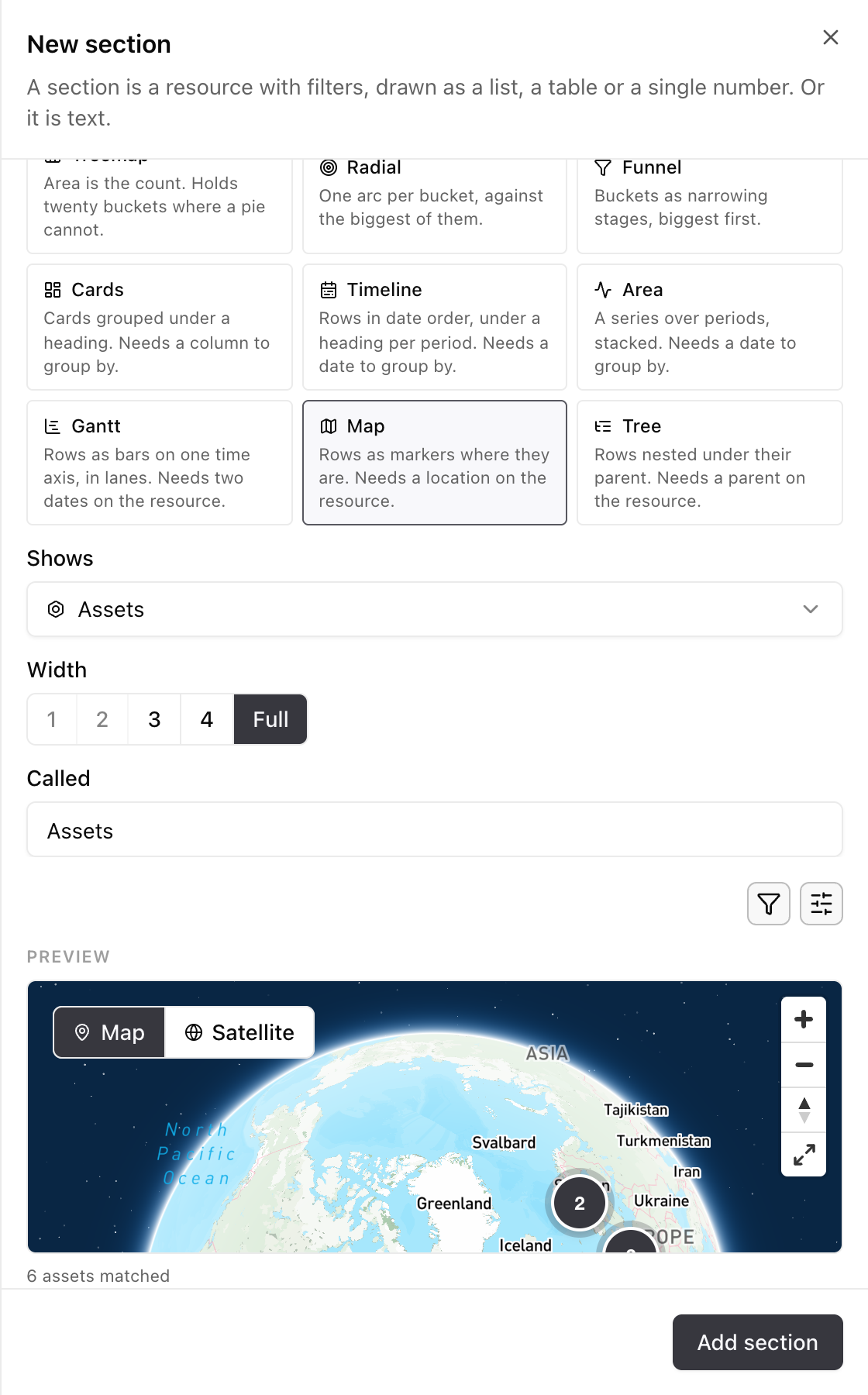
- Click Add a section at the end of the page. The New section panel opens with a preview.
- Under Drawn as, pick a display, for example List, Table, One number, Progress bar, Ring, Timeline, or Map. Some displays need a column to group by or a date, and each one says so.
- Under Shows, pick the kind of record, such as tasks, findings, documents, or assets.
- Narrow the rows with the filter in the preview. Set Width, the number of Rows for a list or a table, and a name under Called.
- Click Add section.
To change a section, point at it and open its menu, or right-click it. The menu has Edit section, Move earlier, Move later, Width, and Remove. The right-click menu also has Open table, which opens the same records on their own page. Click a row to open the record in a drawer, the same as in a table.
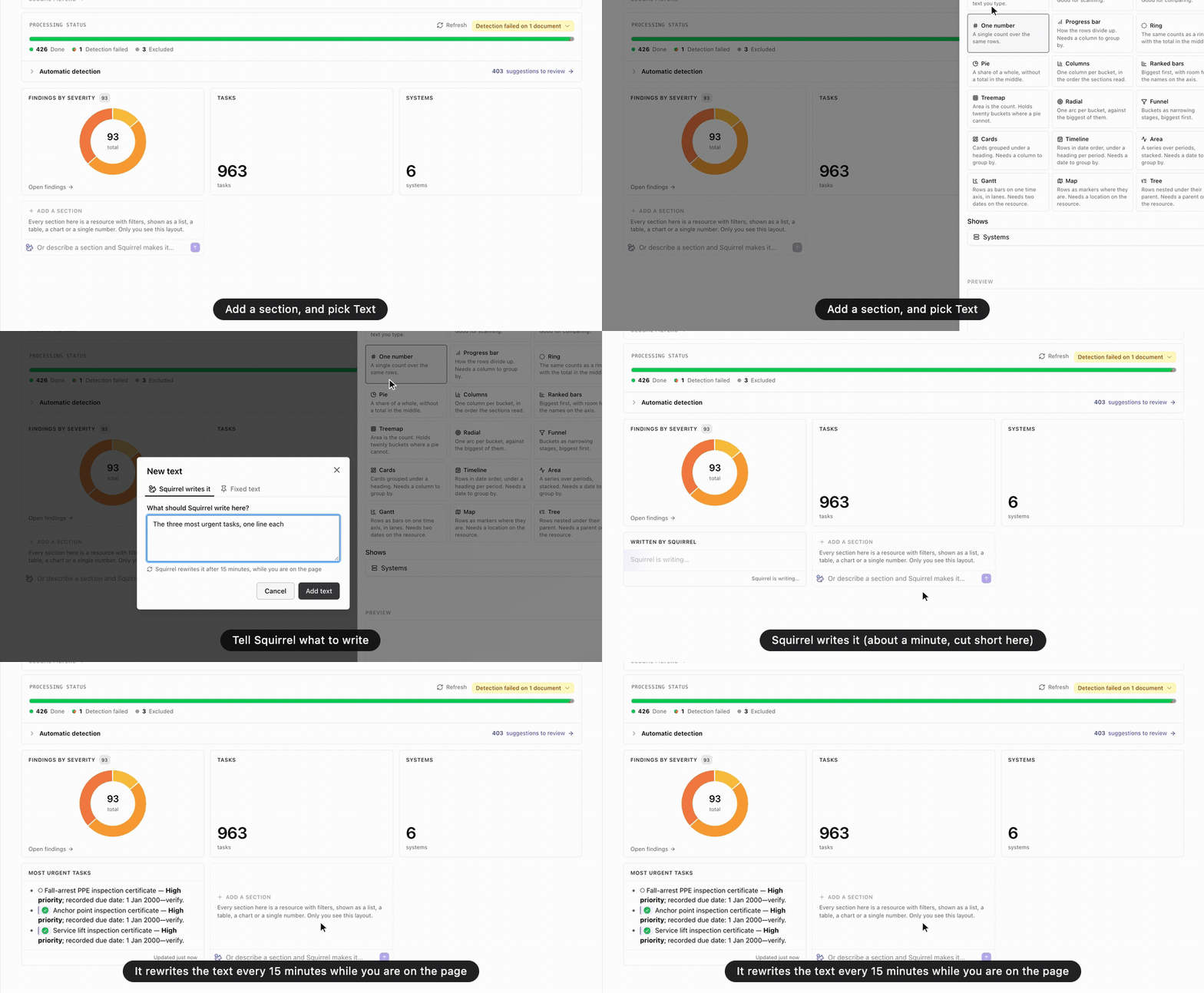
A section can also be text instead of records. Pick Text, the first card in New section, and choose who writes it. Under Squirrel writes it, tell Squirrel what to write, such as the tasks you need to do today. It rewrites the text after 15 minutes while you’re on the page, and Write it again asks for a new version now. Under Fixed text, you type the text on the card and Squirrel never changes it.
Ask Squirrel to build the page
Section titled “Ask Squirrel to build the page”Squirrel can build Home for you. To add a section, type what you want in Or describe a section and Squirrel makes it…, under Add a section at the end of the page, such as “open findings per asset, as bars”. To build a whole dashboard, ask in the chat, such as “set up my home page for the weekly review”, and Squirrel lays out the sections. To change one section, open its menu or right-click it, and type what you want in Ask Squirrel to change it… at the top, such as “only overdue tasks”. The section changes in place, and the message that follows offers Undo. To change the whole layout, click the squirrel button at the end of the layout tabs and type your request in the same box. That request opens in the chat, where Squirrel adds, removes, or rearranges sections and you see what it did.
Show your assets on a map
Section titled “Show your assets on a map”The Map display draws records as pins at their coordinates. Aevy offers it for assets and systems, the two kinds of record with a location. Zoomed out, nearby pins join into a cluster: click it to zoom in until it splits. Records at the same spot open as a list. Click an asset’s pin to see a compact card of the asset, and click its name to open the asset. A record without coordinates isn’t on the map.
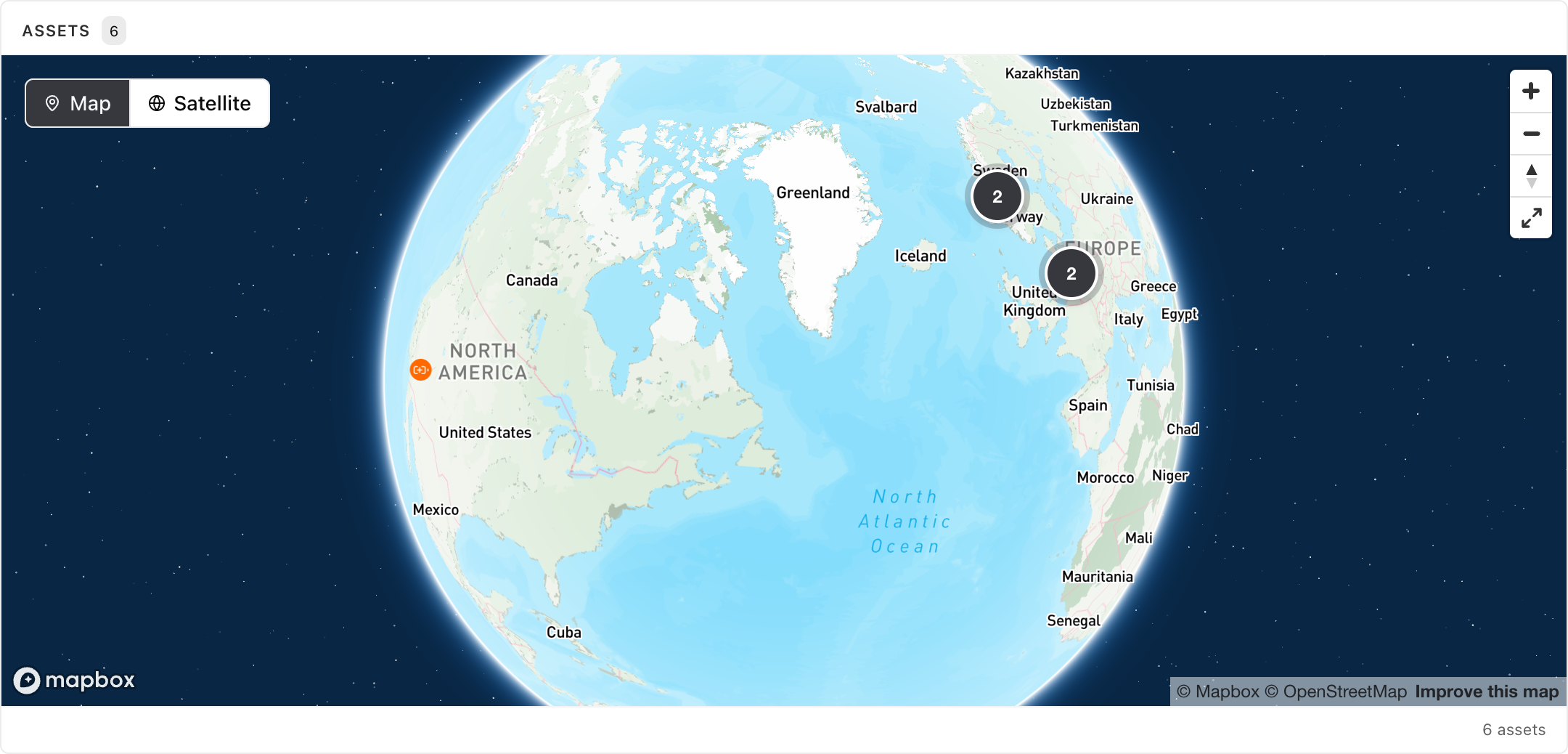
For a full-page map without a section, click Portfolio map in the sidebar’s Portfolio panel, or Map in Browse all. It shows all your assets with coordinates, with zoom, search, and map style controls.
Narrow Home to one asset
Section titled “Narrow Home to one asset”To see one asset’s records in all your sections, pick the asset in All assets. Each section, Processing status included, then shows only that asset. Clicking an asset row in a section does the same. Clear the picker to return to all your assets.
The asset is a filter on the same layout. The page address carries it, so a link opens Home narrowed to that asset. The asset’s own Overview has separate layouts, which the asset overview guide covers.
Keep more than one layout
Section titled “Keep more than one layout”Each layout is a separate set of sections, shown as a tab above them, like a saved view on a table. To add one, click the + at the end of the tabs, type a name, and click Save. A new layout starts empty.
Right-click a tab, or open its menu, for Rename, Set as default, and Delete. Home opens on your default layout. You can’t delete your last layout. The open tab is in the page address.
Limits
Section titled “Limits”Layouts are personal. You can’t share a layout, and a colleague’s Home shows their own sections. There is no grid of asset cards any more: for a list of assets, add a section that shows assets as a Table, List, or Cards.
What’s next
Section titled “What’s next”- Asset overview: the same kind of dashboard, for one asset.
- Documents: what the processing status counts, and how to act on it.
- Getting around: the Portfolio panel and the rest of the sidebar.
- Favorites: keep the assets you work on daily one click away in the sidebar.