Notifications and inbox
Notifications in Aevy collect in an inbox rather than interrupting you. You subscribe to the records you care about with Notify me. Changes to them appear in your inbox, which opens from the Inbox button at the top of the sidebar, with an unread count. You decide per record type which changes reach you by email. Defaults are quiet: replies on your threads, overdue notices on your own tasks, and a weekly summary, with the rest opt-in.
Anatomy
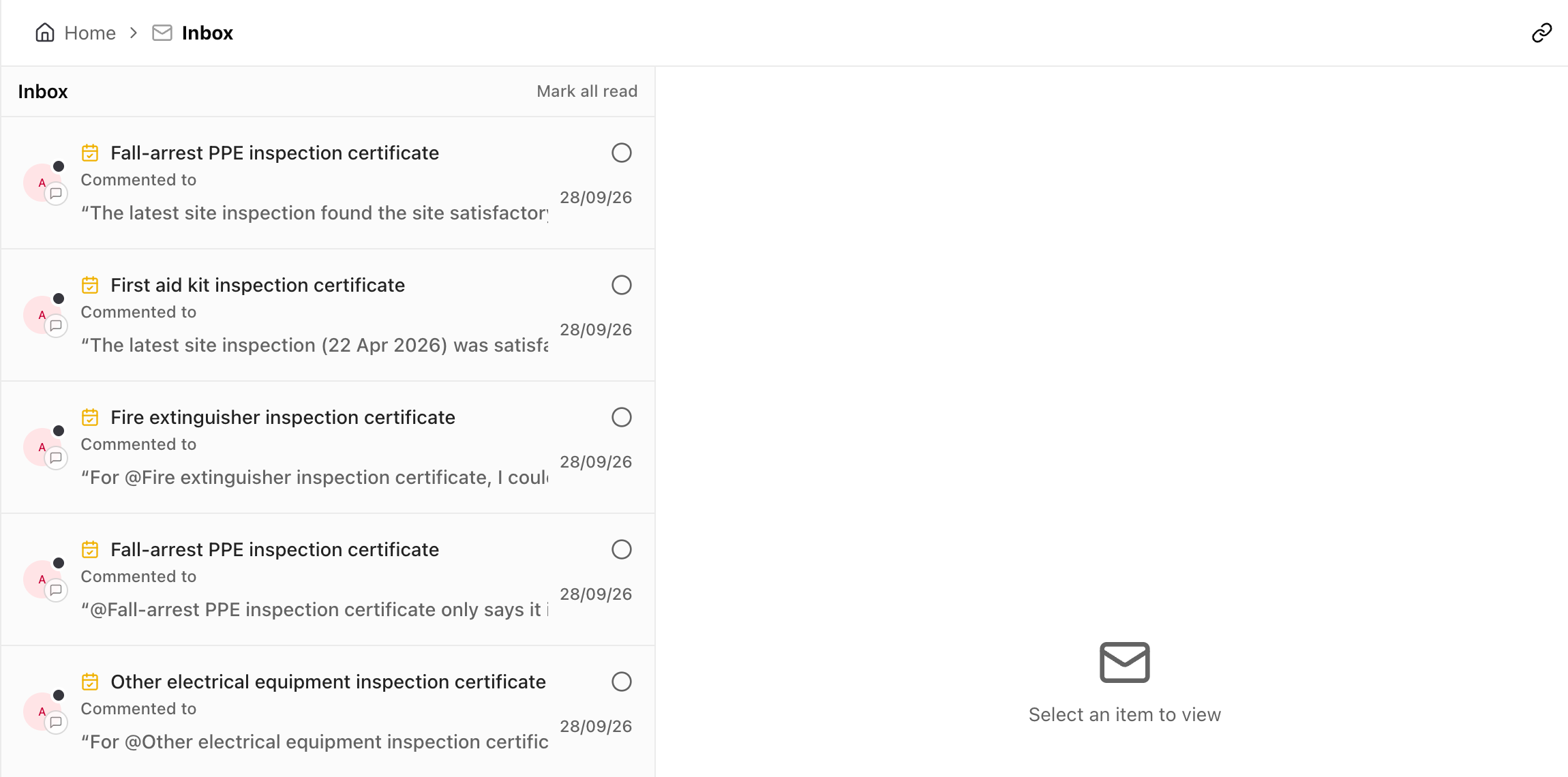
Section titled “Anatomy”The inbox is a two-pane page that opens from the Inbox button at the top of the sidebar. Your notifications list on the left, newest first, and the selected one opens on the right. It reads Select an item to view until you pick one. The badge on the button shows the number of unread notifications, refreshed while you work, and it’s the only place Aevy signals that something happened.
Open a notification to see what changed and jump to the record it happened on. Mark all read appears in the list header while anything is unread, and an inbox with nothing left reads Inbox is empty..
Aevy builds notifications from the same activity log that records every change, grouped into the categories the settings screen uses:
| New items | Someone created a record of that type. |
| Assignments | Someone assigned or unassigned a record. |
| Status changes | A status moved, for example a finding to resolved. |
| Updates | Other field changes: title, description, dates, priority. |
| Comments | New comments and replies, and the mentions inside them. |
| Overdue tasks | Due-soon and overdue notices for tasks assigned to you. Tasks only. |
Which of these a record type offers varies. Documents offer three: new items, status changes, and comments. Only tasks have overdue notices.
Mentions have no row of their own. You always receive a @ mention, whatever this grid says. The Comments row governs ordinary replies on threads you follow.
Follow a record
Section titled “Follow a record”Subscribing is per record, and it’s the main thing that decides what you get notified about:
- Notify me in the row menu. Right-click a row or card, or open its menu, on a task, finding, event, document, system, contact, company, or asset. The same menu then reads Unsubscribe, and Notification settings… next to it opens the choice of which changes count.
- The subscribe button on a record’s own page. An icon button labeled “Notify me of updates” does the same thing where you are already reading the record.
- Watch thread on a comment thread. Follows replies on that one conversation in an activity feed, rather than every change to the record around it.
Writing a comment subscribes you to the thread you wrote in, which is an ordinary subscription that Unsubscribe ends. If someone assigns you a record, that doesn’t subscribe you to it, unless you turn Auto-subscribe on for that record type.
Choose what you receive
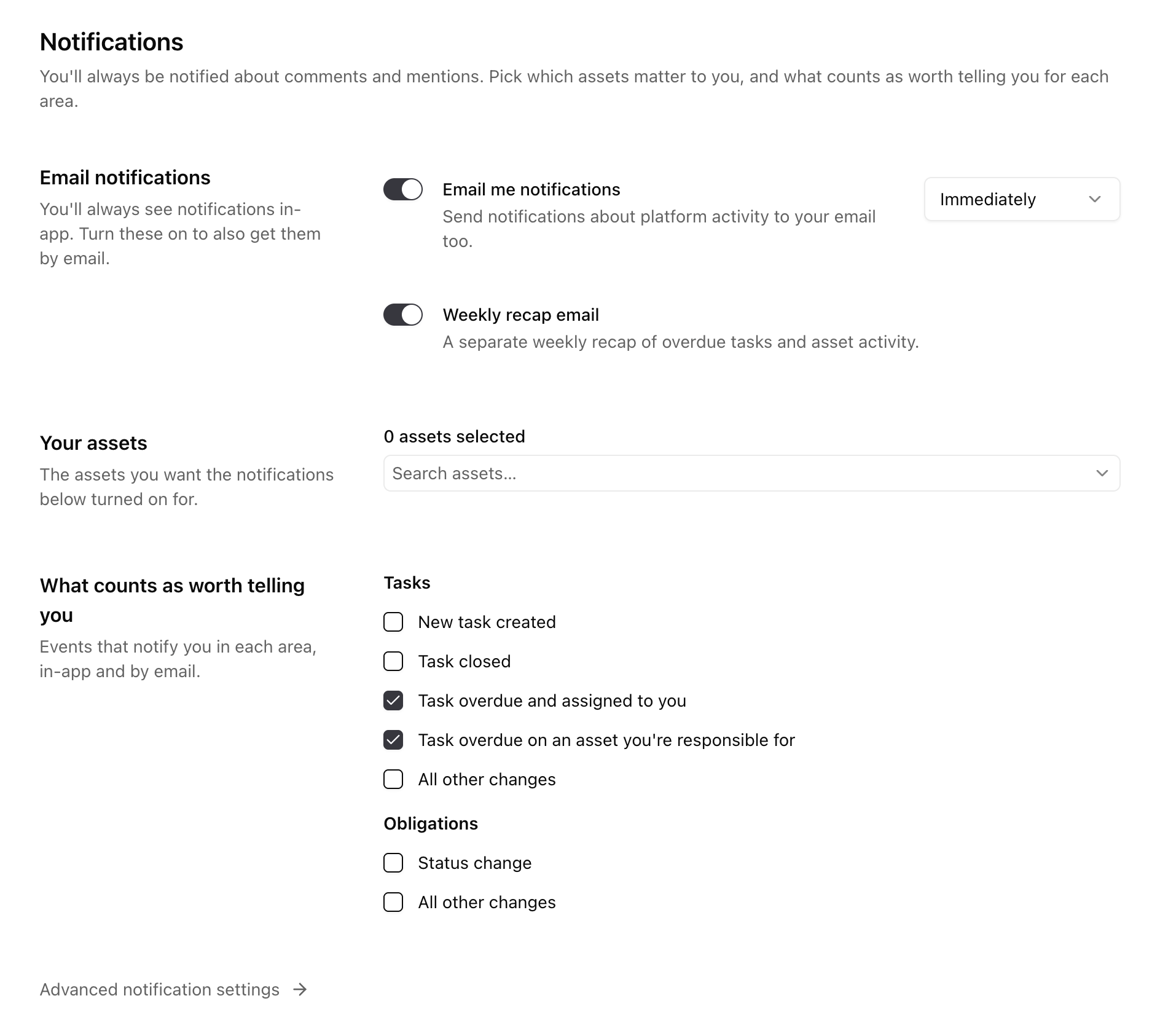
Section titled “Choose what you receive”Notification settings are under your account. Open Settings from the account menu at the bottom of the sidebar, then Notifications. The page always notifies you about comments and mentions, and asks three things:
- Email notifications.Email me notifications sends what reaches your inbox to your email too, at the frequency you pick beside it: Immediately, the default, or batched Hourly, Daily, Weekly, or Monthly. Weekly recap email is a separate weekly roundup of overdue tasks and asset activity, on by default.
- Your assets. The assets you want the notifications below turned on for.
- What counts as worth telling you. One checkbox per situation, for example Task overdue and assigned to you or Task overdue on an asset you’re responsible for. Tasks have a list, and so do obligations where your organization uses them. A ticked box applies in the app, and also by email while email is on.
You can also ask Squirrel in the chat to change these settings or to follow a record for you.
Advanced notification settings
Section titled “Advanced notification settings”Advanced notification settings, at the bottom of the page, opens the full settings for each record type. Pick a record type to see a grid: the categories from earlier, listed down the side, and two channels across the top, In-app and Email. Ticking a box is what turns that one combination on. You can take finding status changes by email and keep document comments in the app only.
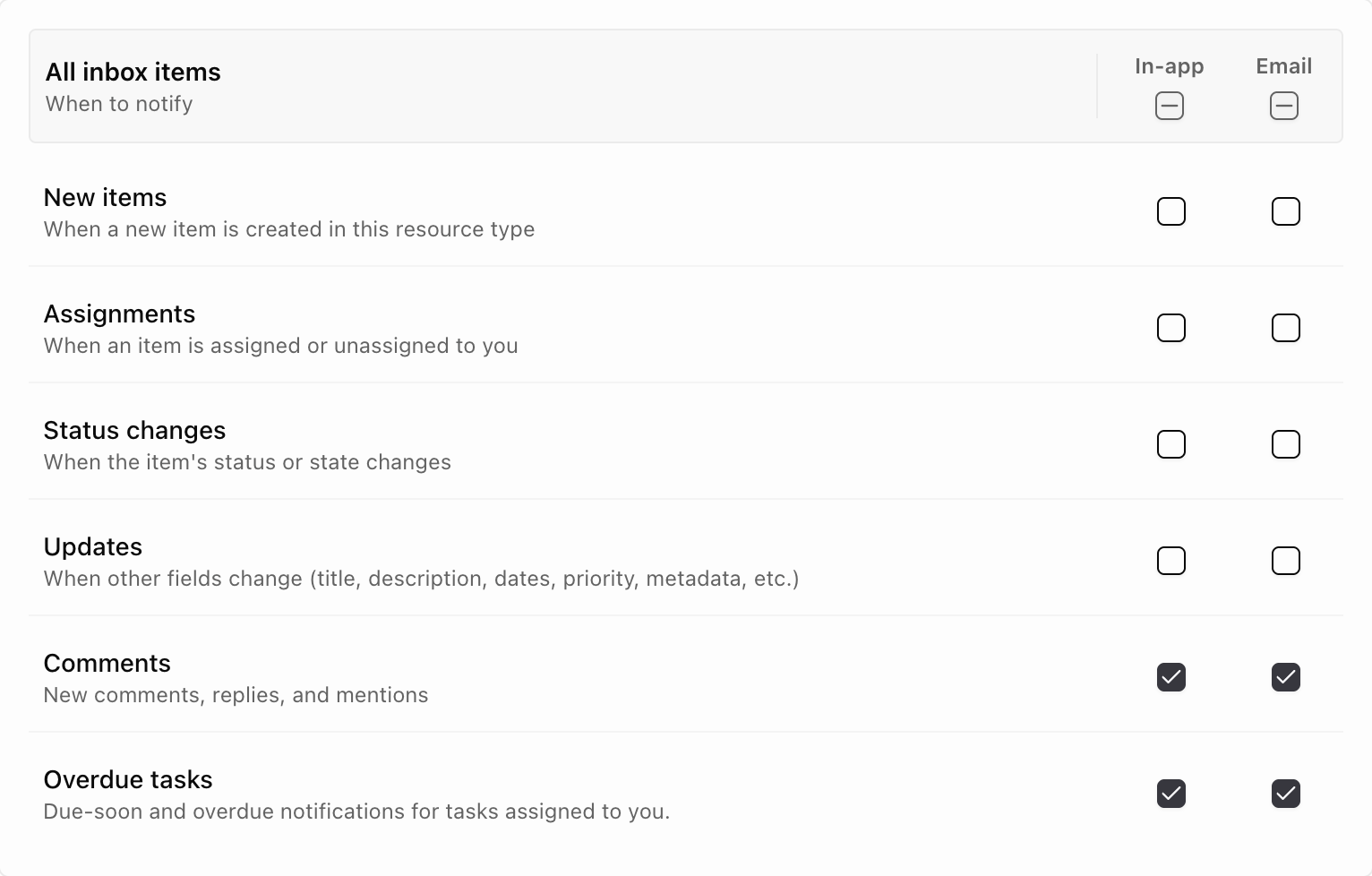
Each record type has up to five of these grids, one per scope, and the scope is what decides which records the ticks apply to:
- When you watch. The records you subscribed to, and the quiet default.
- Per asset. One asset’s records of that type, tuned separately from your general watching preferences.
- All items in your org. Every record of that type in the organization, for the assets you’re responsible for or hold an org-wide role on. This applies whether or not you follow the individual record.
- Auto-subscribe. Decides whether creating a record, or getting assigned one, starts a subscription for you.
- Assets you’re responsible for. On tasks, the one setting that starts on. As responsible asset manager, you get due-soon and overdue notices for tasks on your assets, including tasks with no assignee.
The advanced page also sets Email digest, the same email frequency as on the main page, and the Summary email cadence: Off, Daily, Weekly, or Monthly.
Limits
Section titled “Limits”There is no bell icon and no popup. In-app notifications appear within about a minute of the change, and emails go out in batches a few times an hour. Aevy sends to email and to the inbox, and nowhere else: there is no mobile push notification.
What’s next
Section titled “What’s next”- Activity log and comments: the same history held on the record, for when you want the full story rather than the notice.
- Mentions: the one thing that reaches you whatever your settings say.
- Suggestions: one accepted on a document you follow lands in your inbox.
- Findings: a status change on one you follow does the same.