Search
Search in Aevy finds records, saved views, and the app’s own pages by name, from any screen. Click the search box near the top of the sidebar, or press Cmd+K (Ctrl+K on Windows), and type part of a name. Results appear grouped by type, and Enter opens the highlighted one. Tab narrows the search to one type or one asset.
Anatomy
Section titled “Anatomy”The search box is near the top of the sidebar, under the row with the Inbox. It reads Search assets, docs…. Search opens over the page you’re on and starts empty each time. Press Esc or click outside it to close it.
Type part of a name, and the results appear in groups, one for each type:
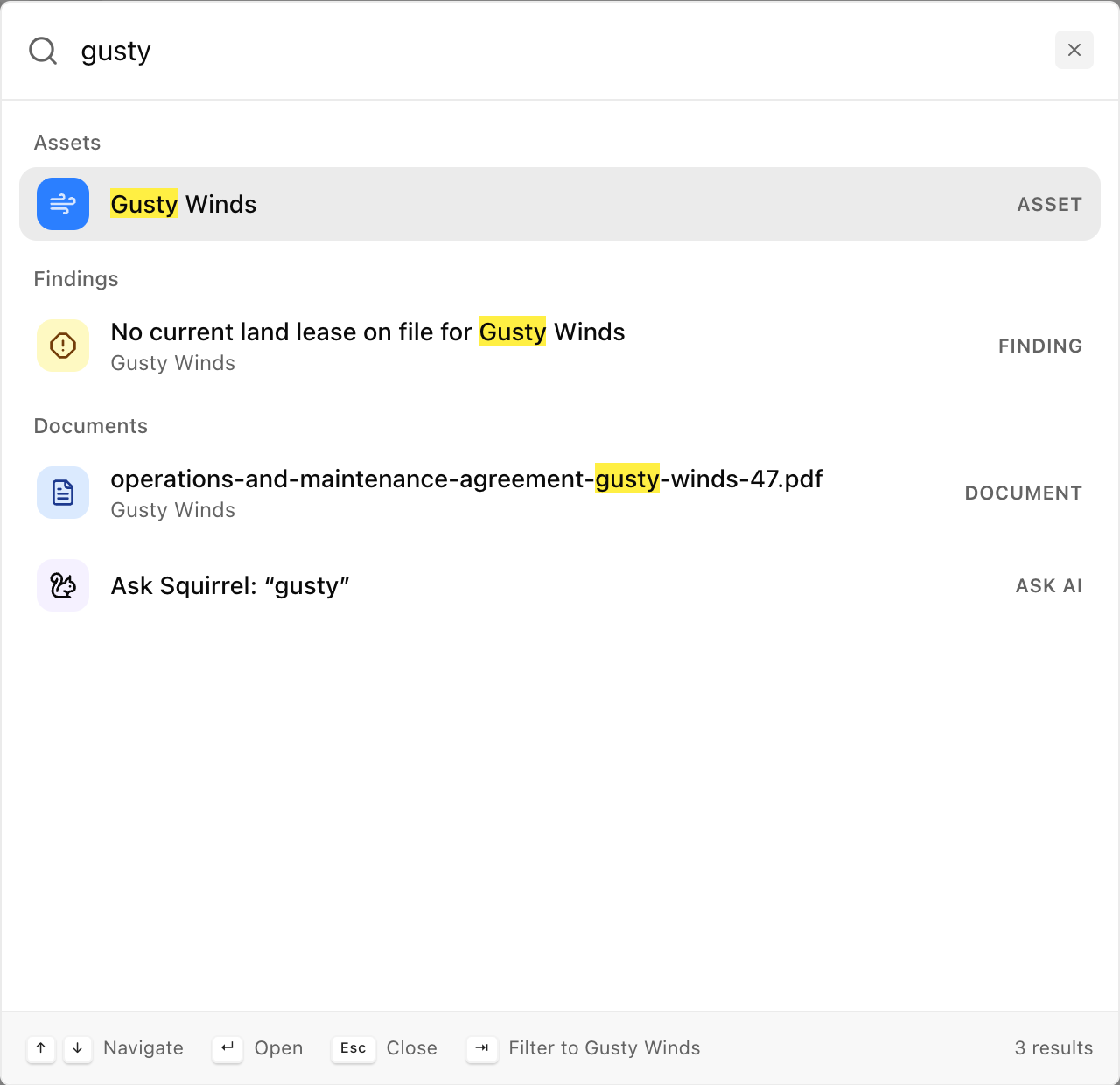 12345
- Search box. What you type. When you narrow the search, chips appear at its left and its hint text says what you narrowed to.
- Group. One heading for each type: tasks, events, findings, suggestions, documents, assets, contacts, companies, systems, and obligations, plus your saved views and the app’s pages. A group shows up to eight results.
- Result. The name, with each word you typed highlighted, and the type. A record on an asset shows the asset’s name under its own, with a count such as +2 more when it’s on several assets.
- Ask Squirrel. The last row sends what you typed to Squirrel as a question.
- Footer. The keys that work here, and how many results there are. When
Tabwould do something, the footer says what, for example Filter to Gusty Winds.
Reopen a recent record
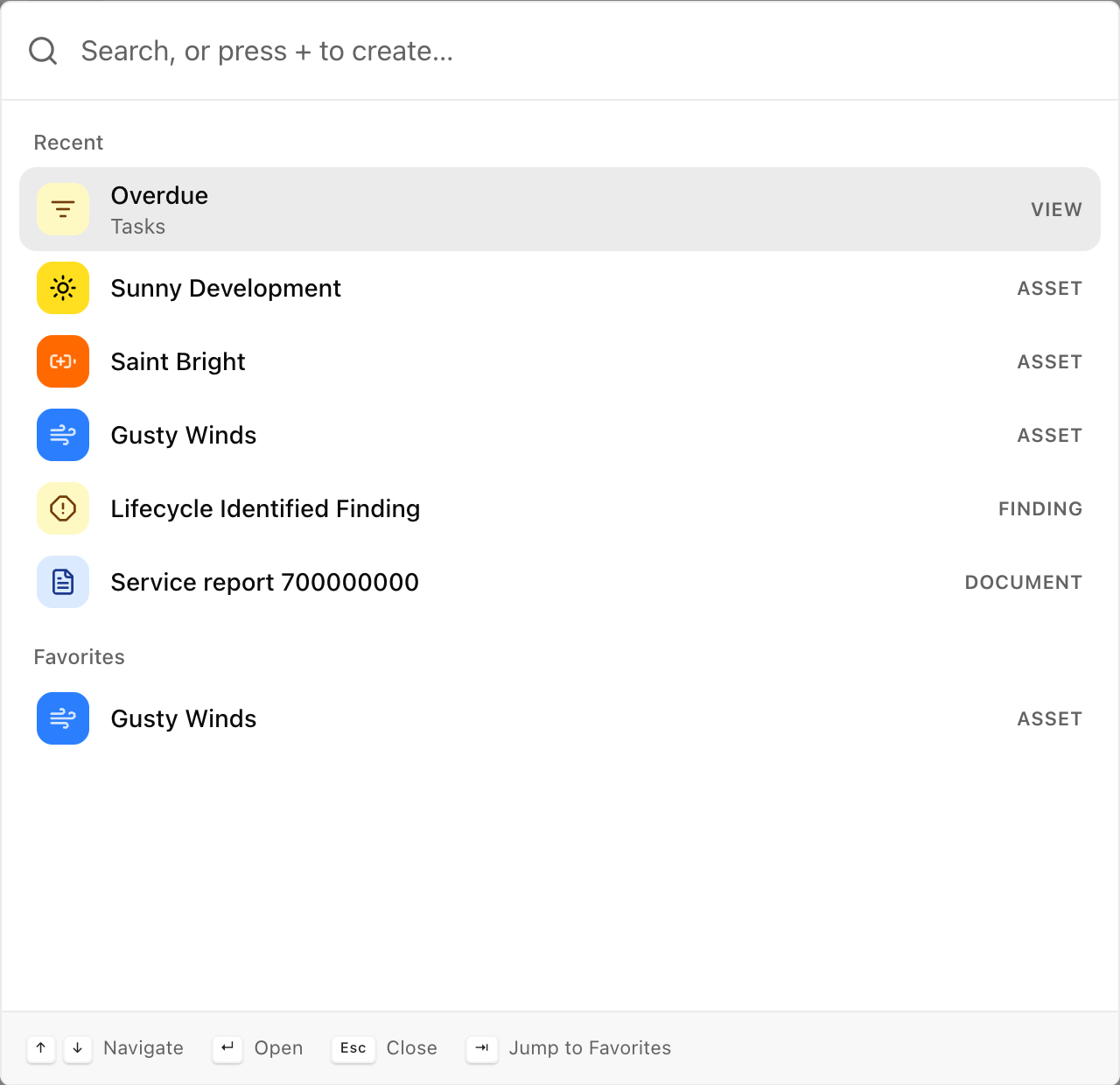
Section titled “Reopen a recent record”Before you type, Search lists what you’re likely to open again. Recent shows the last eight records and saved views you opened, newest first. A record joins Recent when you stay on its page for a moment, and a saved view joins when you pick its tab. Aevy stores Recent with your account: it’s the same in any browser you sign in to.
Favorites lists all the assets and saved views you’ve starred, and scrolls when the list is long. To move the highlight from Recent to Favorites, press Tab.
Find a record
Section titled “Find a record”Search compares what you type with each record’s name: a task’s or a finding’s title, a document’s filename, an asset’s or a contact’s name. A name that matches exactly comes first. Next come names that start with your text, then names where each word you typed starts a word of the name, in any order, then names that contain all your words anywhere. For example, grid connection finds a file named grid-connection-agreement.pdf. Among equally good matches, the records you’ve opened most in recent weeks come first. A record you open daily still ranks below a better name match.
Two more rules apply to the results. A contract that Aevy read as unsigned ranks below the other matches, and the signed version comes before its drafts. When few names match, Search also lists names that are a letter or two away from a word you typed, below the exact matches, with the word it matched highlighted.
The group with the closest match is at the top. If the result you want isn’t among a group’s eight, type more of its name. Search also finds your saved views, each labeled with the page its table is on, and the app’s own pages, such as Settings. It shows only records on assets you have access to.
To open a result, click it or press Enter. A record opens on its own page, and a saved view opens its table with the view applied.
Narrow the search
Section titled “Narrow the search”A chip in the search box narrows the search to one type, to one asset, or to one type on one asset.
Narrow to one type
Section titled “Narrow to one type”To search one type, type the start of its name and press Tab. What you typed turns into a chip, such as Documents, and Search looks only at that type. For example, doc narrows to documents, and t narrows to tasks. Before you press, the footer names the result, for example Filter to Documents. When two types start the same way, type more letters: con for Contacts, com for Companies.
If you’ve already typed a search, Tab narrows it to the group at the top and keeps your text. Press Tab again to move to the next group.
Before you enter any text, a type chip narrows Recent and Favorites to that type. The Views chip lists your saved views, and the Pages chip lists the app’s pages. To remove a chip, press Backspace in the empty search box, or click the chip’s X.
Narrow to one asset
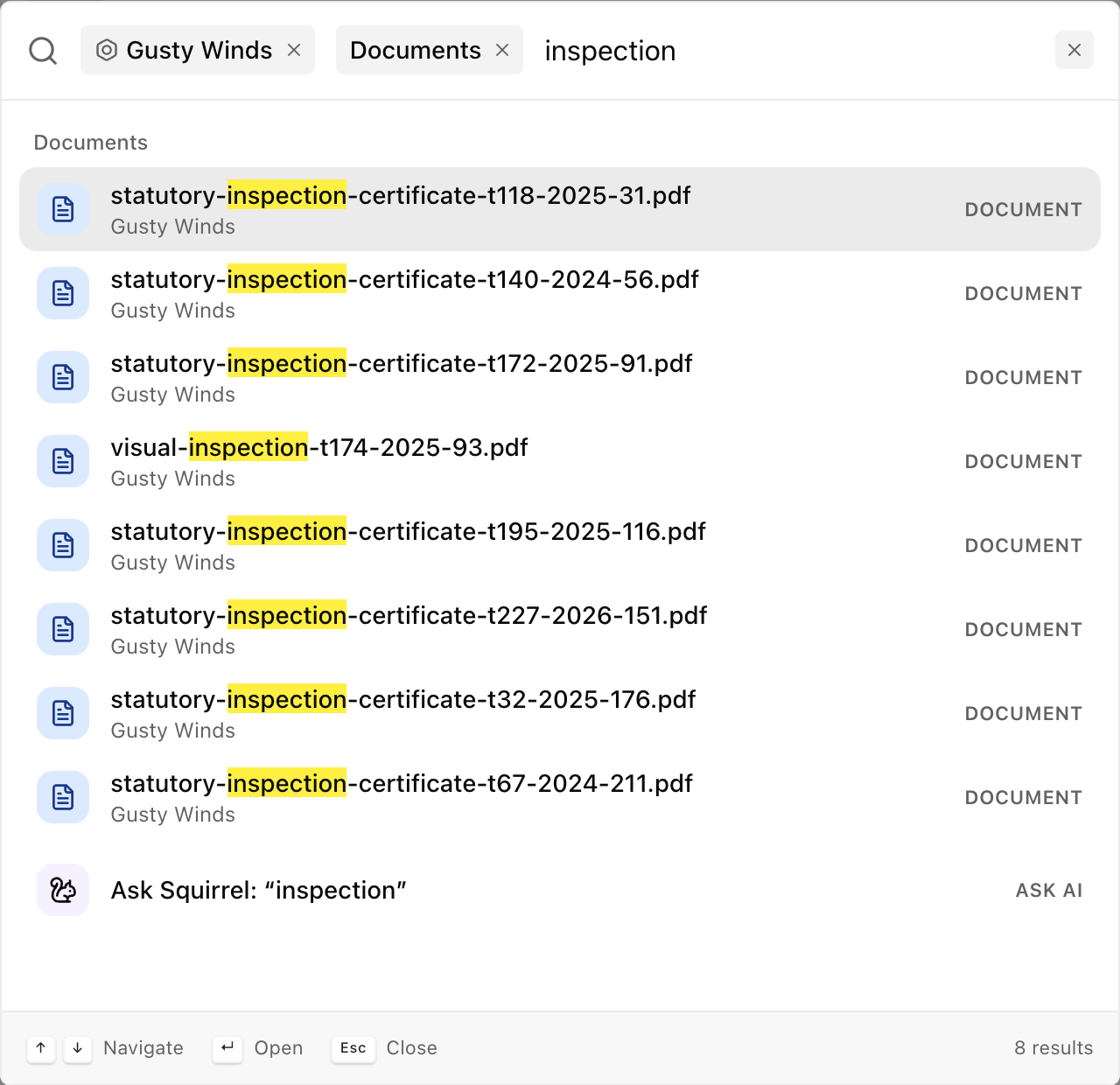
Section titled “Narrow to one asset”To search inside one asset, type the start of its name and press Tab. The asset becomes a chip, and the search box reads Search in Gusty Winds…. Add a type the same way, in either order: gusty, Tab, doc, Tab searches the documents on Gusty Winds.
Inside an asset, the Pages group lists that asset’s own pages, such as Asset details, Documents, and Findings. Typing doc highlights the asset’s Documents page: press Enter to open it, or Tab to search its documents instead. With nothing typed, Search lists the asset’s pages and its most recently updated records, and Enter opens the asset’s overview. On an asset’s own page, Tab in the empty search box narrows to that asset.
Create a record
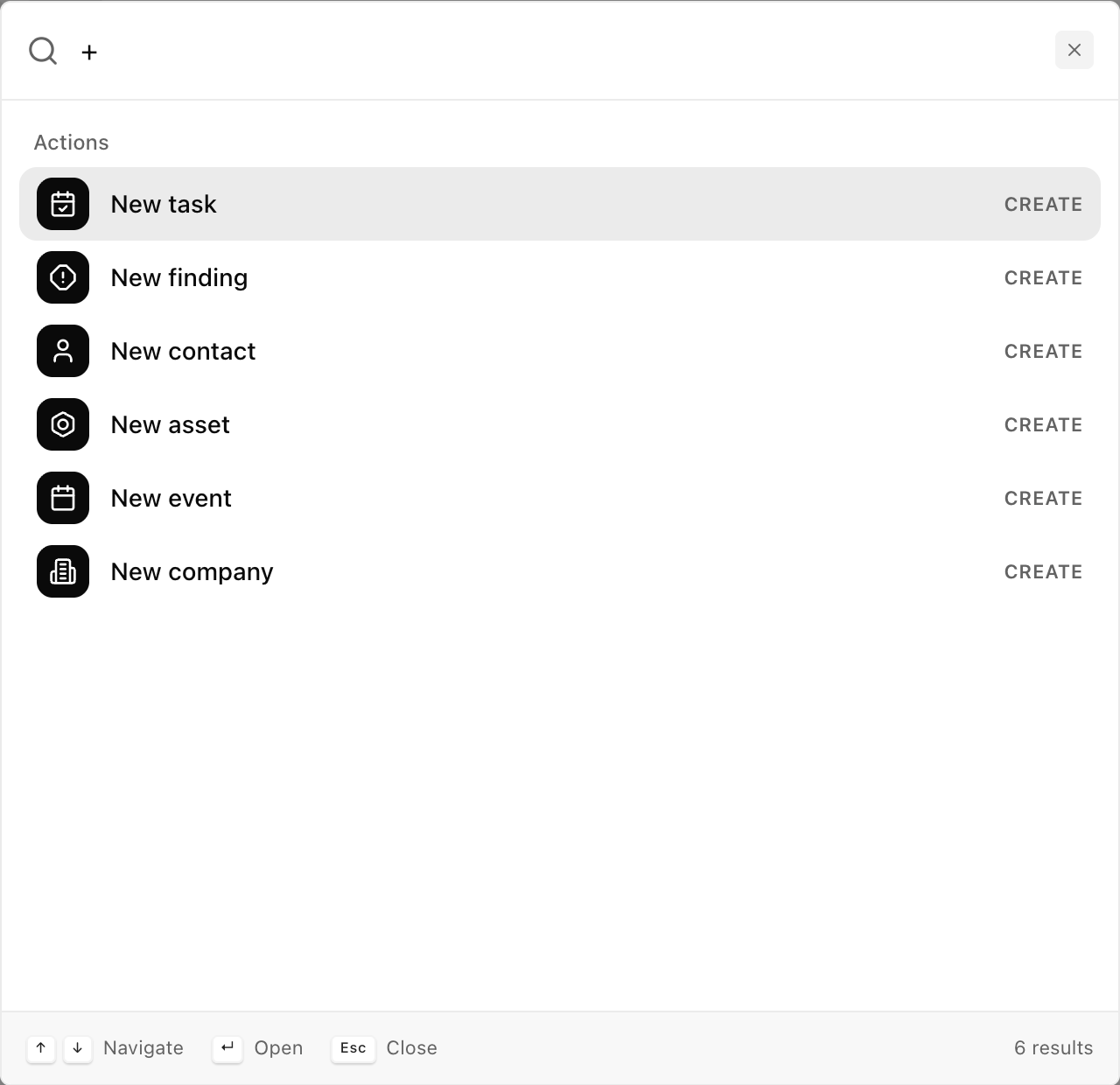
Section titled “Create a record”Type + to list the records you can create from Search: tasks, findings, contacts, assets, events, and companies. Choose an action, such as New task, to open the same form as the New button on that record’s page.
These actions also appear at the top of the list when your text is part of their name. Typing task puts New task at the top, so Enter creates a task. To open an existing task instead, move down to it with the arrow keys.
Ask Squirrel a question
Section titled “Ask Squirrel a question”When you’ve typed something, the last row reads Ask Squirrel: followed by your text. Choose it, and Search closes, the chat panel opens, and your text goes to Squirrel as a question. If the open chat already has messages, the question starts a new chat. When nothing matches, Search highlights that row, and Enter asks Squirrel.
Squirrel answers from your own documents and records and cites its sources. Any change it proposes arrives as a suggestion for you to accept or dismiss. Chips don’t go with the question, so name the asset in your text.
What’s next
Section titled “What’s next”- Favorites and pinning: what you star appears in Search before you type.
- Filtering tables: the saved views that Search opens with the view applied.
- Mentions: pick a record by name in a comment or the chat, from the same list of names.
- Squirrel: what happens to a question you send with Ask Squirrel.